
Setting up Appium for the first time is harder than it should be. There are drivers to install, capabilities to configure, devices to connect, and inspectors to learn — and a single wrong step can leave you staring at an error with no clear way forward.
This page collects everything you need to go from zero to running your first Appium tests, in the right order. Follow the path below and you'll have a working setup on both Android and iOS, know how to inspect and interact with your app's UI, and understand the core Appium concepts that underpin every test you'll ever write.
The Learning Path
1. How to Install Appium 3 on Mac
 Mayvin Ramasawmy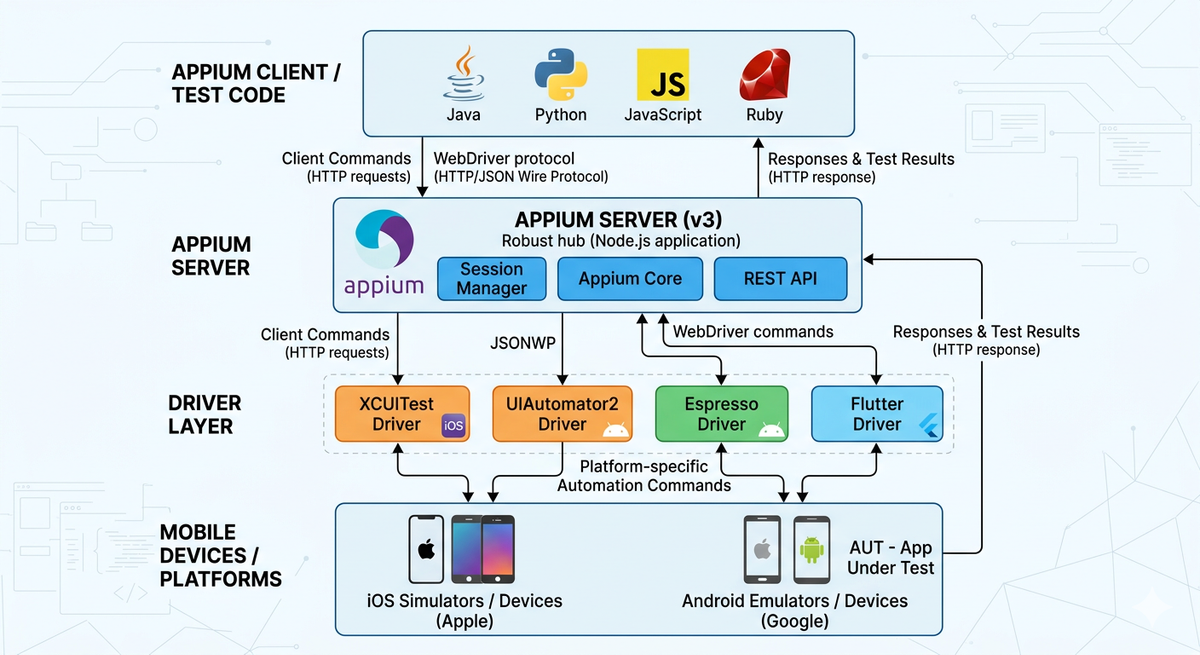
Start here. Before anything else works, you need Appium installed correctly. This guide walks you through installing Appium 3, the Appium Doctor tool, and everything else you need as a foundation.
2. Appium Android Setup on Mac
Mayvin Ramasawmy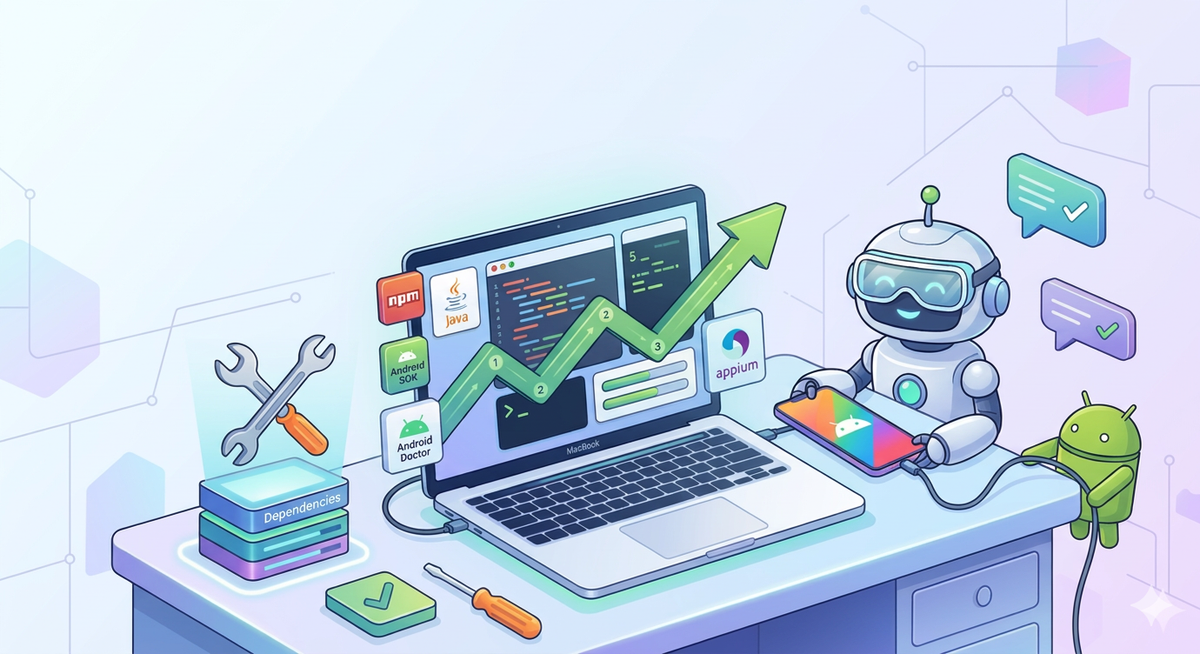
Once Appium is installed, you need to connect it to a real device or emulator. This article covers the full Android setup: the UIAutomator2 driver, Android Studio, ADB, and how to verify everything is talking to each other.
3. Appium iOS Setup on Mac
Mayvin Ramasawmy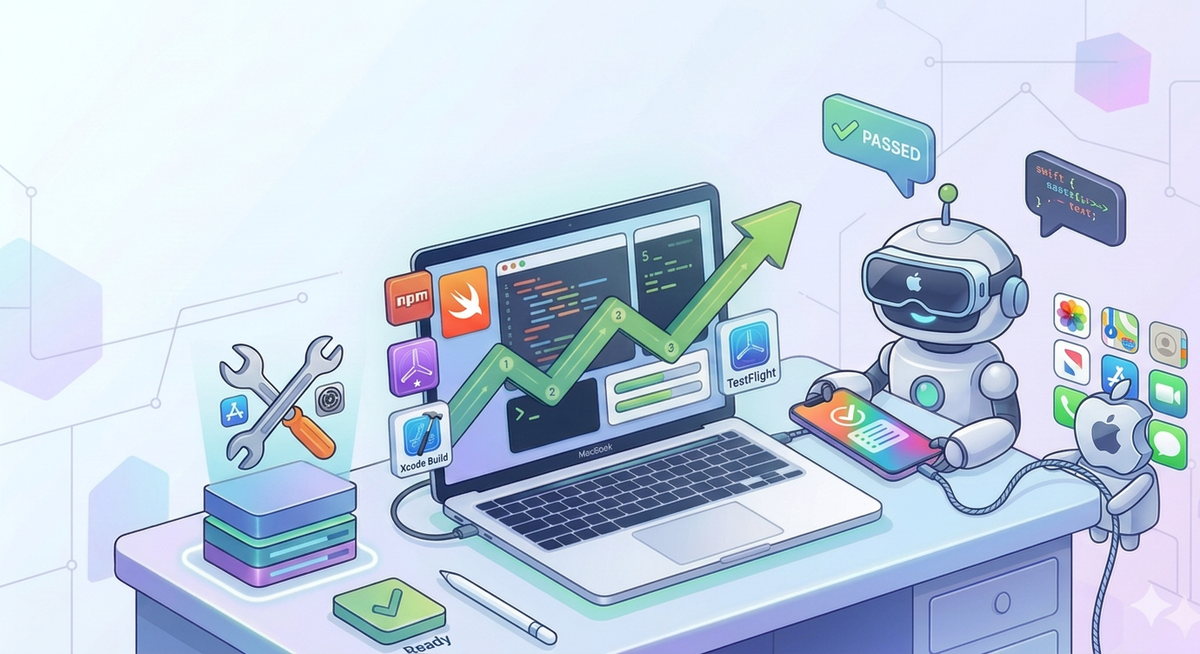
The iOS setup has its own requirements — Xcode, the XCUITest driver, and some Apple-specific configuration that trips up a lot of people. This guide covers it all, including how to run tests on both simulators and real devices.
4. How to Use Appium Inspector (Beginner Guide)
Mayvin Ramasawmy
Before you can write locators, you need to be able to see your app's UI structure. Appium Inspector is the tool for that. This beginner guide gets you connected and inspecting your first app in minutes.
5. Appium Inspector: A Practical Guide to Features and Panels
Mayvin Ramasawmy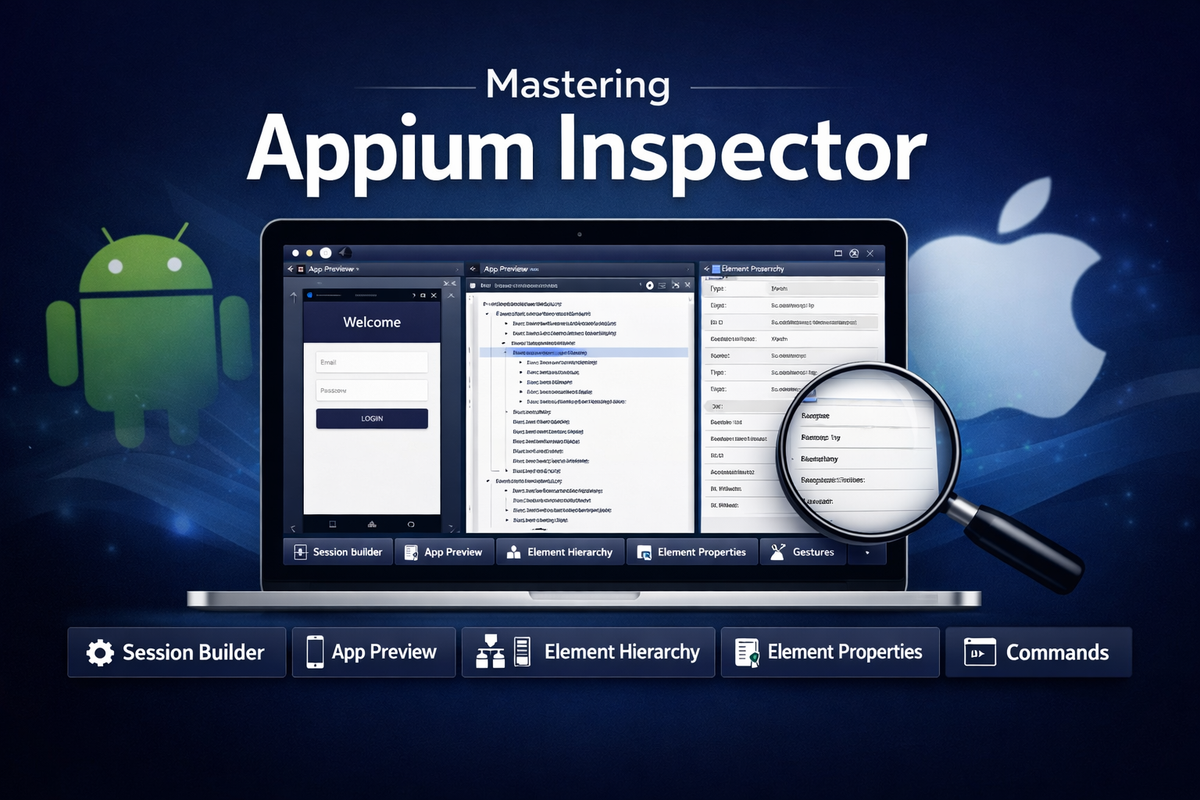
Once you know the basics, there's a lot more Appium Inspector can do. This guide goes deeper into the features and panels you'll rely on day-to-day, including recording actions, filtering elements, and running commands directly from the Inspector.
6. Appium Locator Strategies
Mayvin Ramasawmy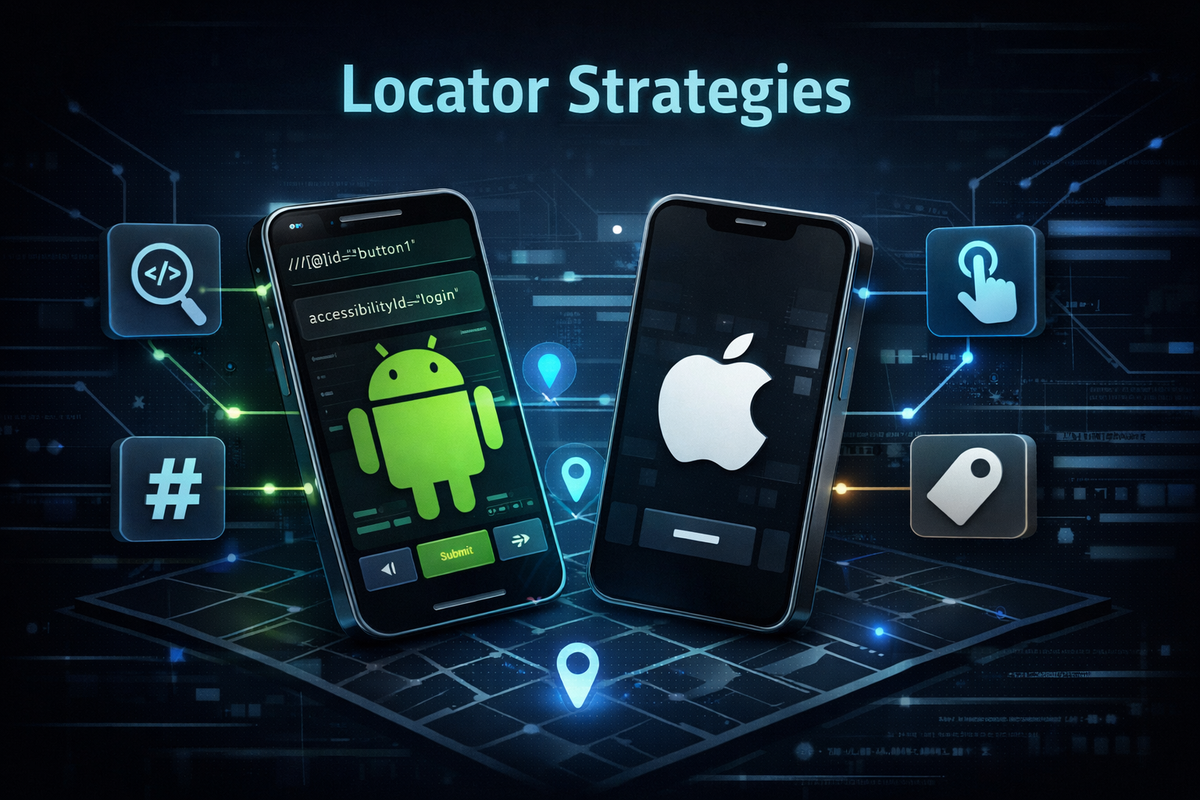
Finding elements reliably is one of the most important skills in mobile automation. This article breaks down every locator strategy Appium supports — what each one is, when to use it, and when to avoid it — so you can write selectors that don't break the moment the UI changes.
7. Appium Capabilities Explained
Mayvin Ramasawmy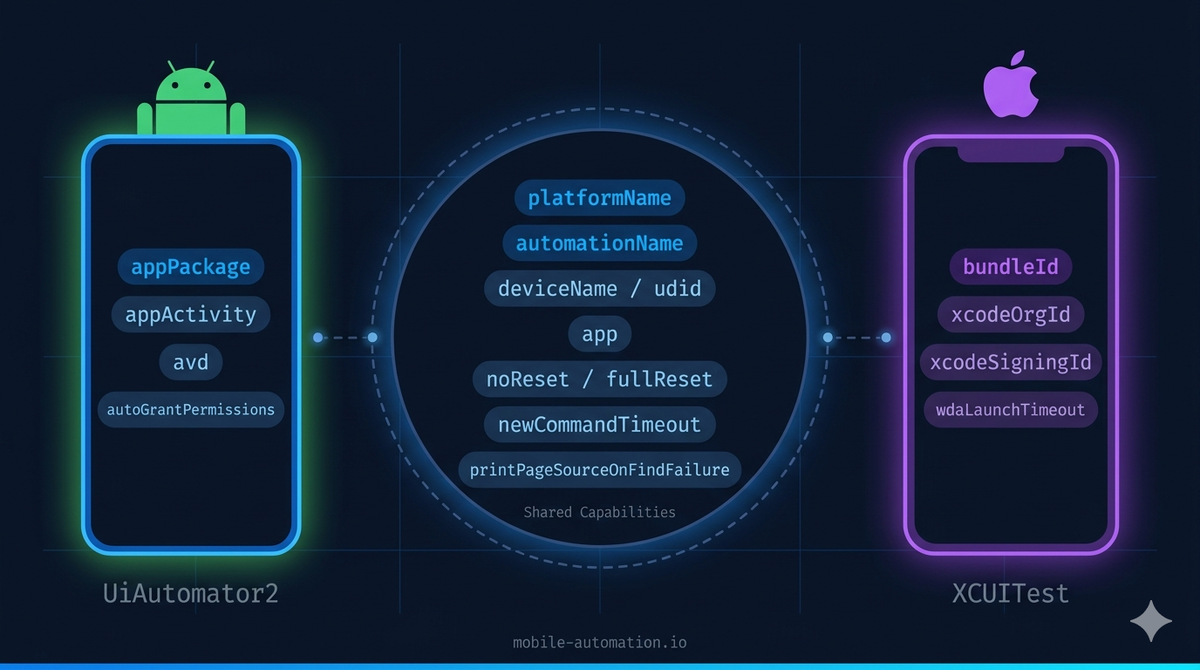
Capabilities are how you tell Appium what app to launch, which device to target, and how to behave. A single misconfigured capability can stop your session before it starts. This article demystifies every key capability you need to know.
8. Appium Execute Methods
Mayvin Ramasawmy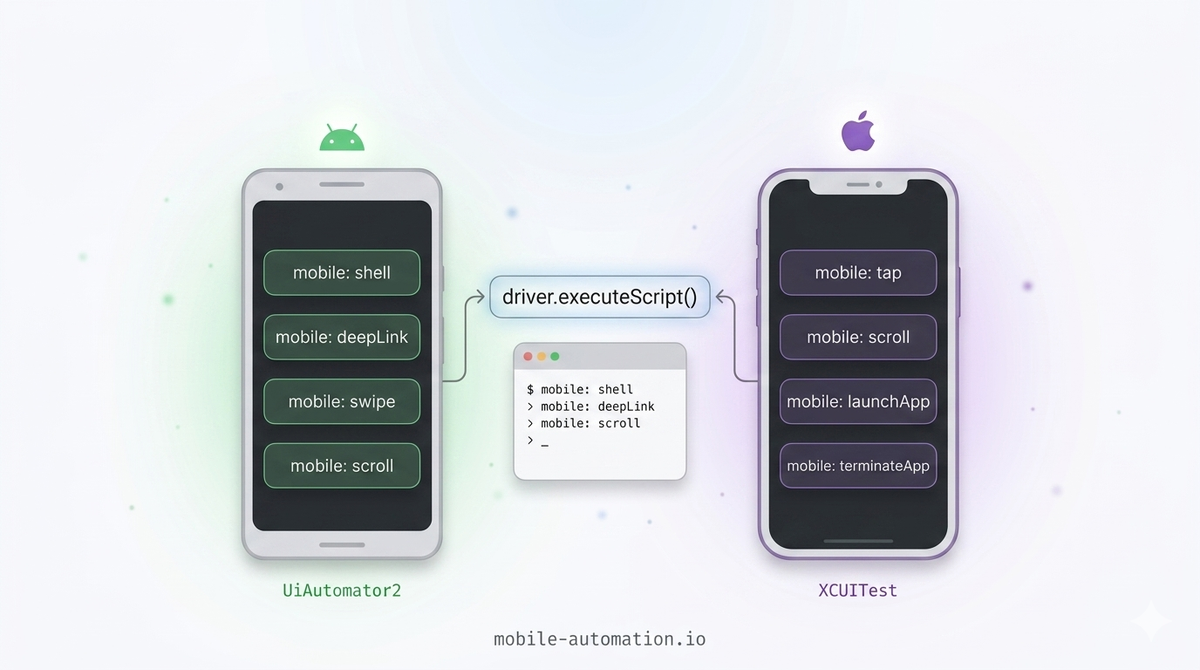
Once you have the basics down, execute methods unlock a whole layer of power that standard Appium commands can't reach. This article covers what they are, how to use them, and where they're most useful in real-world test automation.
9. Appium End-to-End Tests
Mayvin Ramasawmy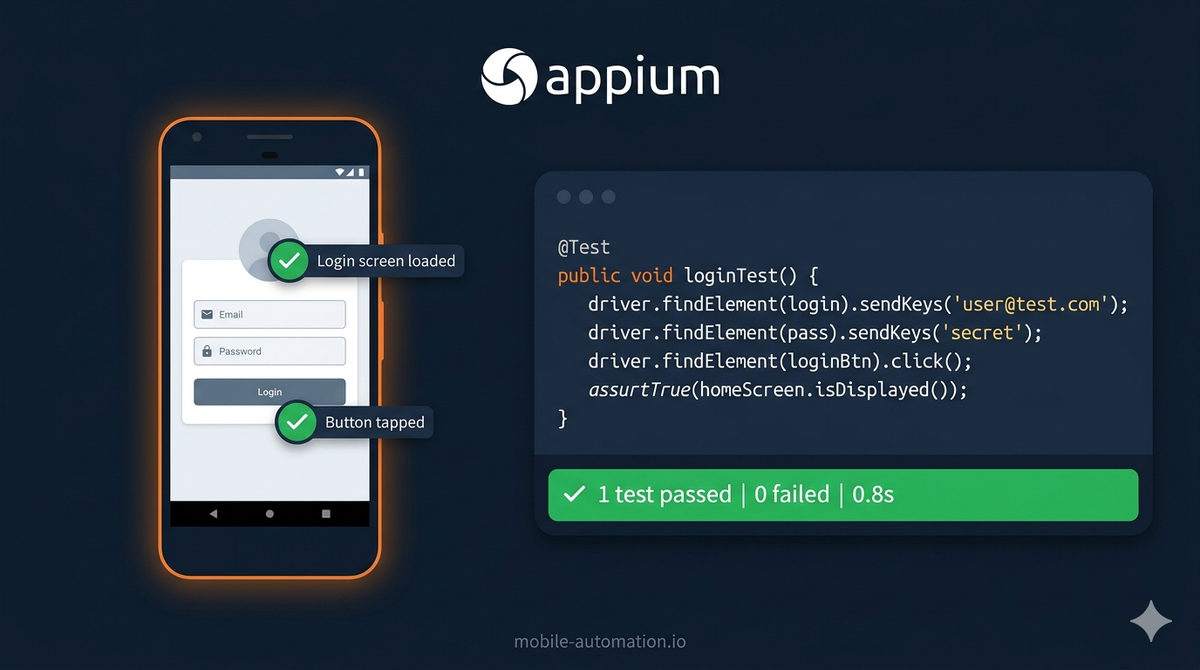
This is where the setup and fundamentals pay off. This article walks you through writing three real end-to-end test scenarios — login, swipe/scroll gestures, and drag-and-drop — on both Android and iOS. You'll learn how to handle platform differences, manage app state between test runs, and structure tests that are ready for a real framework.
What's Next?
You've come a long way — from installing Appium to running real end-to-end tests on Android and iOS. That's no small thing.
But the tests you've written so far stand on their own. The next step is turning them into a framework — something that holds up at 200 scenarios, runs on Android and iOS from a single set of screen objects, and finishes in minutes instead of most of an hour.
That's exactly where the next path picks up:
 Mayvin Ramasawmy
Nine articles, one codebase — from an empty folder to a suite running in parallel across multiple devices, with every architectural decision explained as you go. Each hands-on article ships with a complete, runnable code workspace, free to download with a subscription.
After that: cloud device farms, visual and accessibility testing, and an honest look at where AI genuinely helps in mobile testing — self-healing locators, AI-assisted test generation, and knowing which claims to ignore.
New guides are on the way — subscribe and you'll be the first to know when they drop.


