
If you haven’t installed Appium on your Mac yet, I recommend starting with my previous guide:
 Mayvin Ramasawmy
In this article, we’ll continue the setup by configuring the iOS automation environment required to run Appium tests.
Install Xcode and Accept the Xcode License Agreement
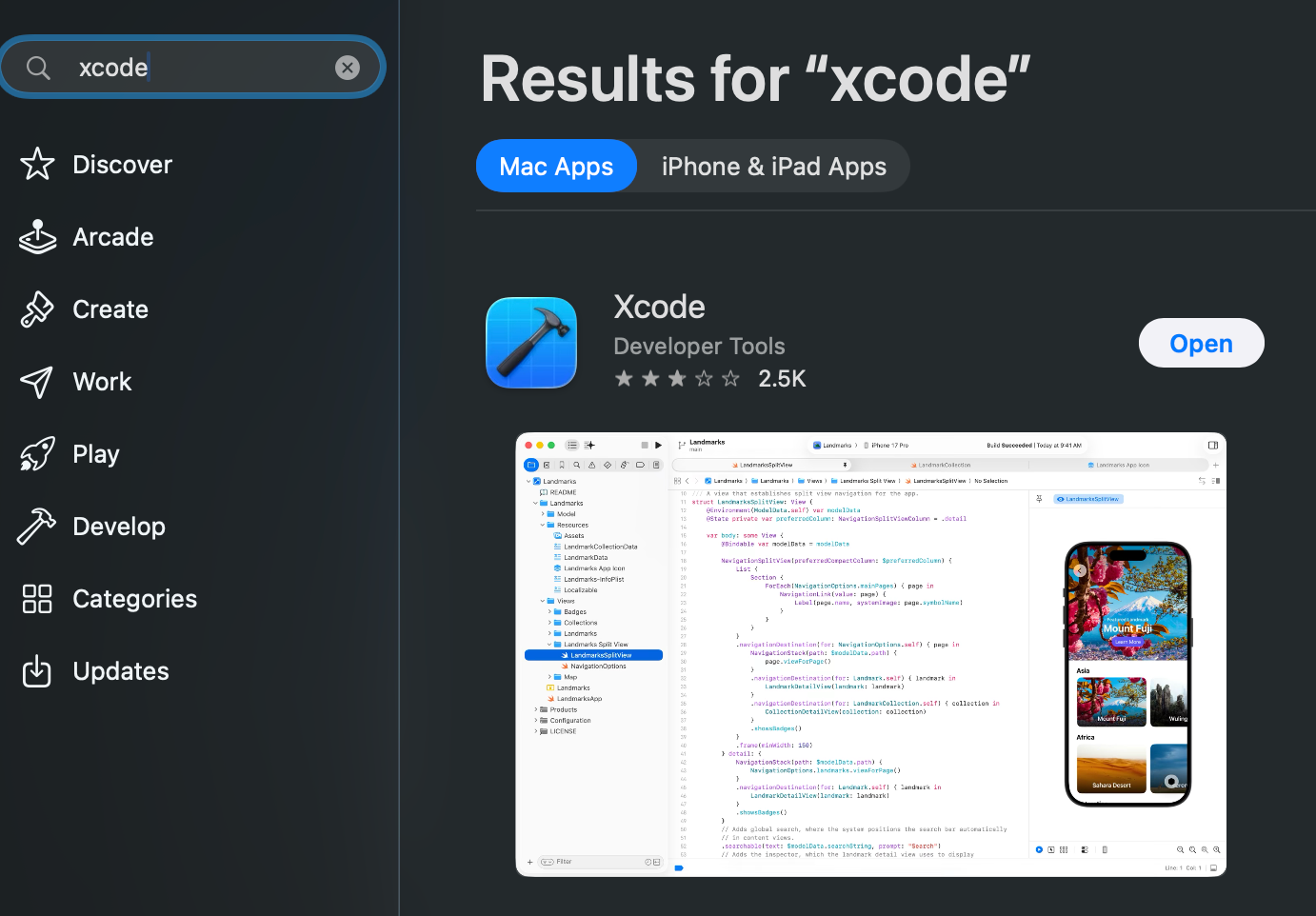
Open the App Store, sign in with your Apple ID, then download and install Xcode.
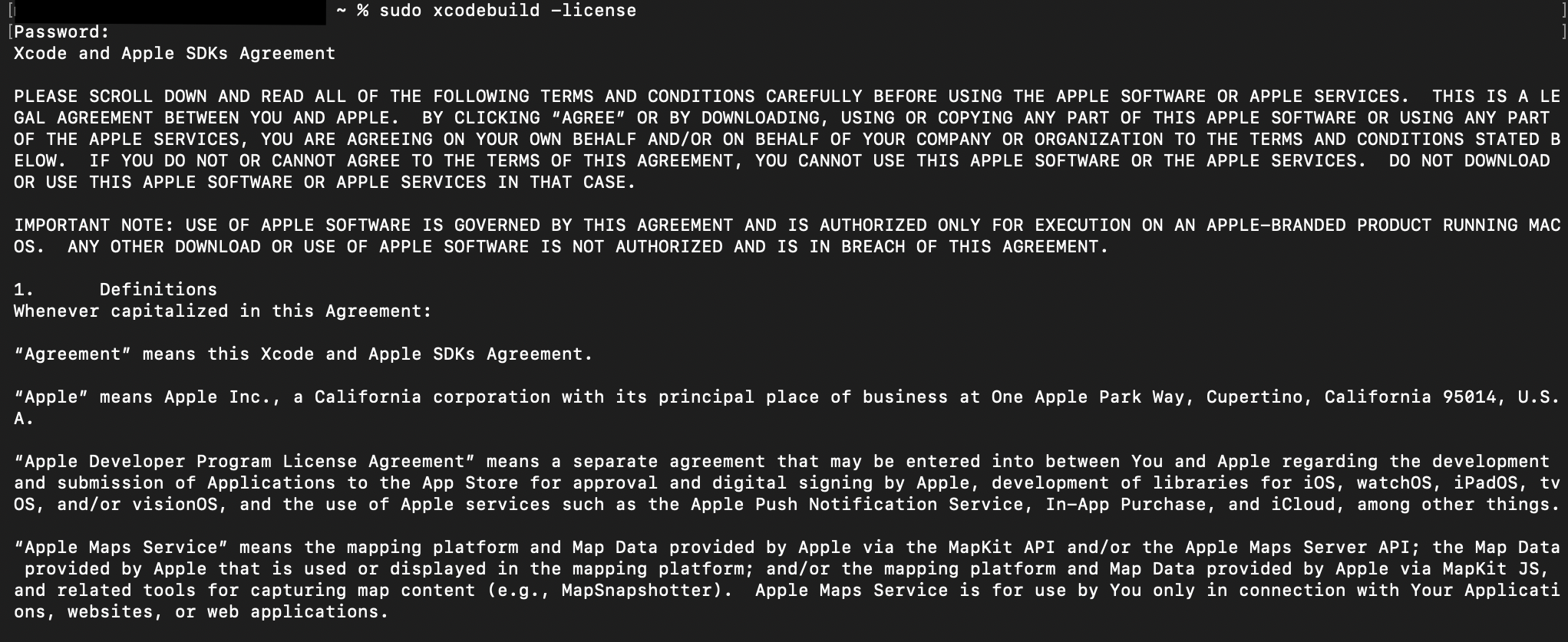
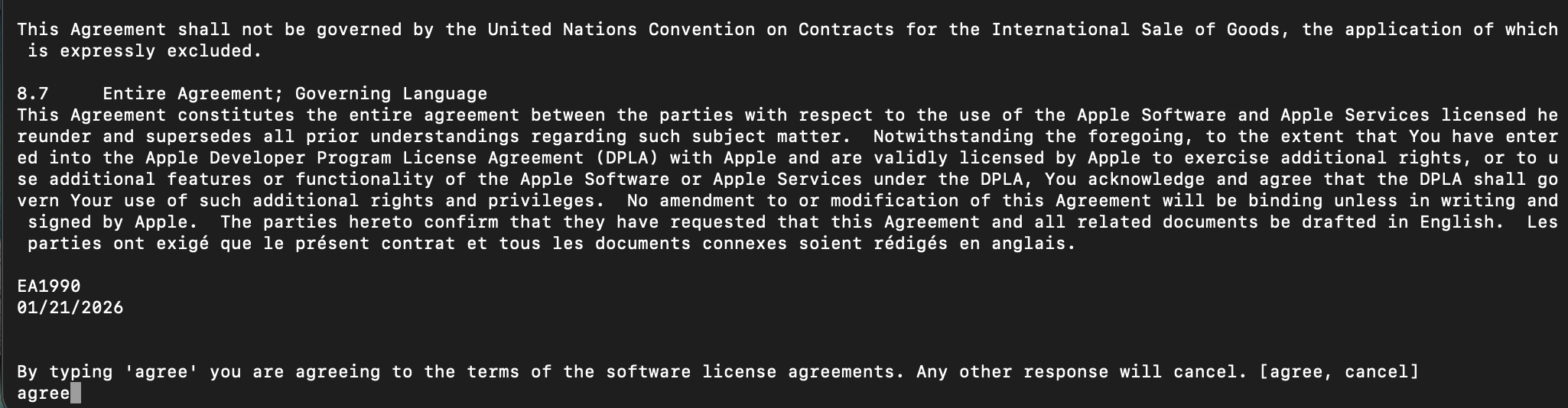
Run sudo xcodebuild -license in your terminal and accept the Xcode license agreement. This step is required because the Xcode command-line tools used by the Appium XCUITest Driver will not execute until the license is accepted.
Carthage
Carthage is an iOS dependency manager that was previously required to build dependencies for WebDriverAgent. Since version 3.33.0 of the Appium XCUITest Driver, Carthage is no longer required, as these dependencies are now bundled with the driver.
Even though Carthage is no longer strictly required, Appium Doctor still checks for it. Installing Carthage helps avoid warnings and ensures everything runs smoothly.
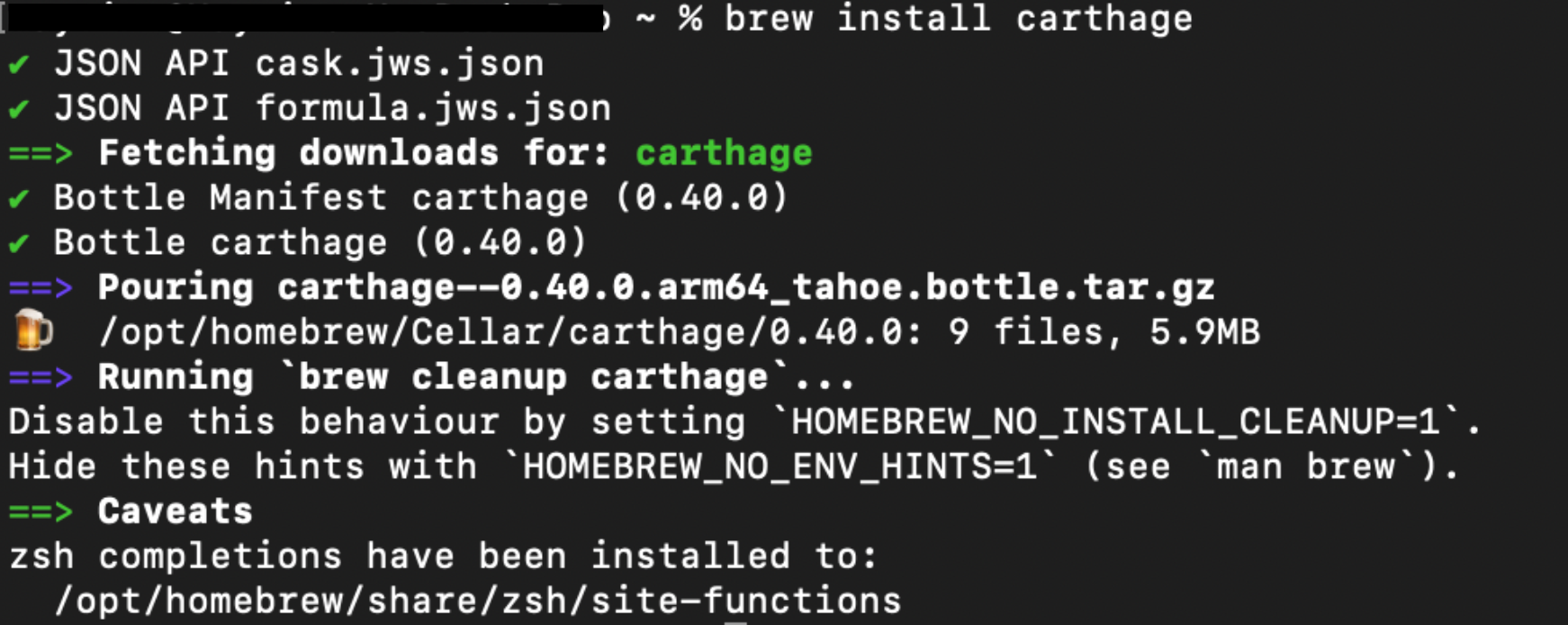
brew install carthage
Optional Tools for Real iOS Devices
If you plan to run tests on a physical iPhone or iPad, you may need to install additional tools such as libimobiledevice and ios-deploy.
- libimobiledevice enables communication with iOS devices over USB, allowing tools to detect devices and interact with them.
- ios-deploy is a command-line utility used to install, launch, and debug apps on a physical device.
These tools are commonly used when working with real iOS devices.
Note: They are not required when running tests on the iOS Simulator, since the simulator is fully managed by Xcode.
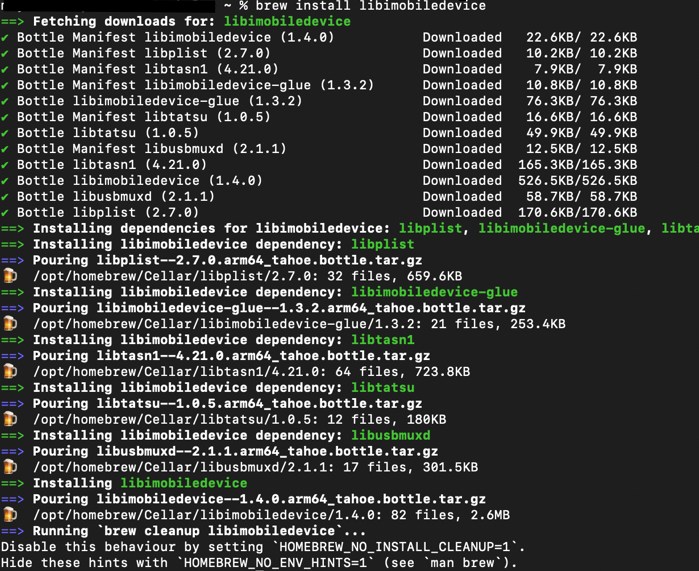
brew install libimobiledevice
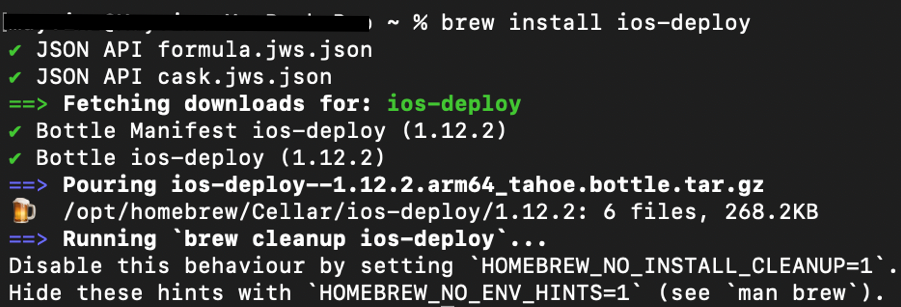
brew install ios-deploy
Install the XCUITest Driver
With Appium already installed on your Mac, the next step is to install the XCUITest driver. This driver enables Appium to automate native iOS applications on real devices and simulators using Apple’s XCTest framework.
appium driver install xcuitest
✅ Tip: The command downloads the latest version of XCUITest compatible with Appium 3.x.

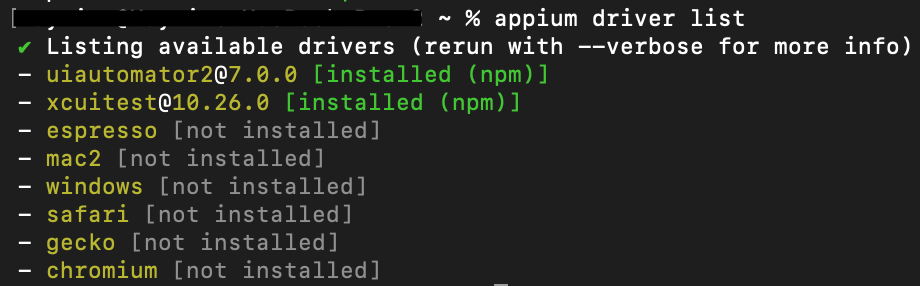
Run the driver list command to check if the XCUITest driver was installed correctly.
appium driver list
Verify the iOS Setup Using Appium Doctor
As a final step, you can use Appium Doctor to ensure that your iOS environment is correctly configured. Run the following command in your terminal:
appium doctor --ios
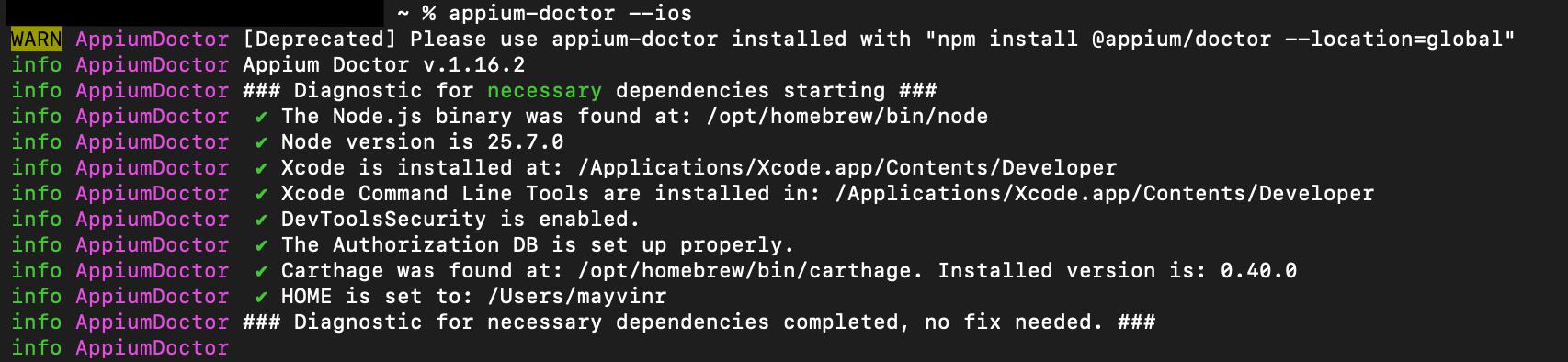
✅ Note: For now, focus only on the required dependencies. Make sure there are no errors reported.
Optional dependencies can be configured later once the basic setup is working.


Discussion