
In Part 3, Maestro Cloud started running on every pull request and a failing flow now blocks the merge. This last part covers what happens after a run: who gets told, how to find out why a flow failed and whether all of this is worth paying for.
By the end, you'll know how to:
- Know why a green run on Cloud can still hide a real bug
- Send run results to Slack, email or your own tools with a webhook
- Tell a flaky flow from a device-specific failure using the Dashboard, Compare and Retry
- Decide whether Cloud is worth $250 per device per month for your team and when you need real devices instead
💡 Disclosure: Maestro gave me one month of free Maestro Cloud access (2 Android devices, 1 iOS device) for this series. They had no input on this article and everything here, including the limitations and whether Cloud is worth the price, is my own assessment.
Retries and Limits
Cloud retries some failed flows automatically, without you asking. Two behaviors from Maestro's Automatic Retries docs are worth knowing before your first flaky failure:
- Smart retries. Cloud retries a failed flow when the previous run of the same flow passed and the new run used the same device model and OS. That previous run can come from any branch, so a flow that passed on
maincan trigger a retry when it fails on your feature branch. A flow is identified by itsnameor its filename if it has none. - Infrastructure retries. If Maestro decides a failure came from its own infrastructure, such as a device host or network problem, it retries the test on a different machine.
⚠️ Watch out: retries make a flaky flow look green and that's how a real intermittent bug hides for months. We uploaded a flow that passes half the time, 10 times in a row. Cloud retried three failures and two of those retries passed. Both showed Success everywhere: in the CLI, on the upload page, in the run history and on the Dashboard (6 of 10 runs passed though only 4 first attempts did). The only sign is a gray banner on the flow's own page: "This test failed and was re-run by our Smart Retry system". Look for it before you trust a green run.
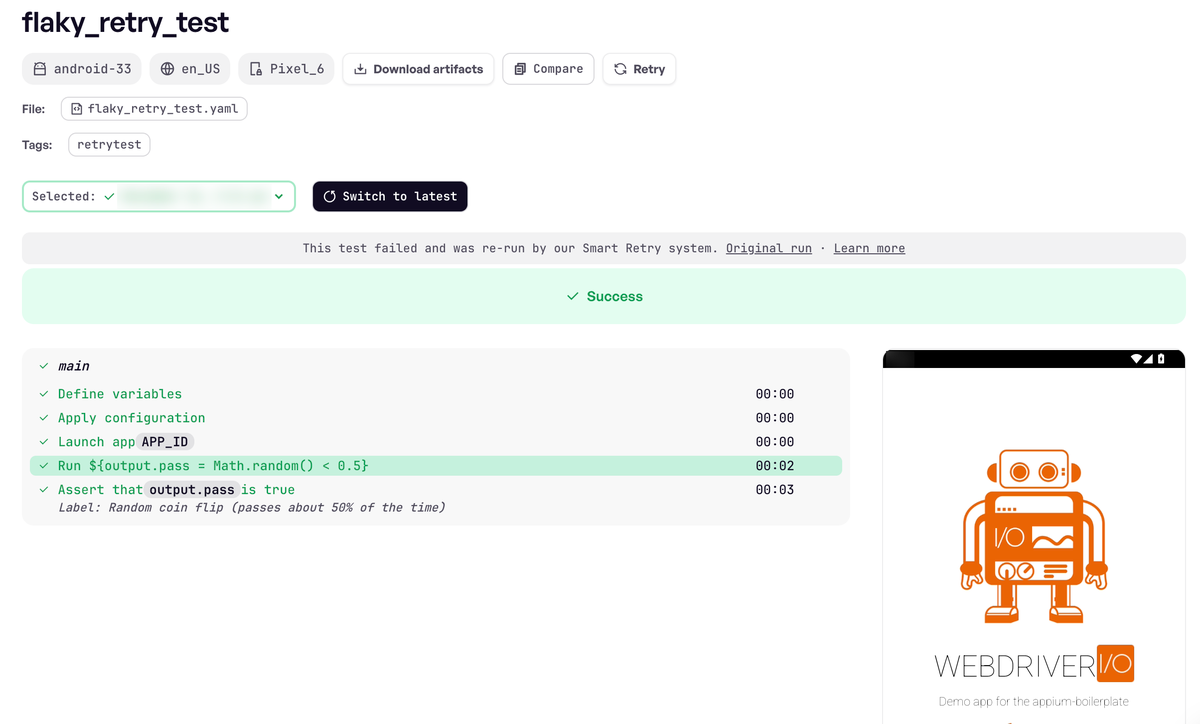
💡 Retries don't cost extra: the Cloud plan includes unlimited runs. But each retry keeps a device busy while your other flows wait. In our test, each retried upload took about 45 seconds longer.
There's also a time limit: Maestro's docs set a soft limit of 20 minutes per test execution, after which a test may be stopped. Split long flows into smaller ones. That's good practice anyway and the subflows from How to Write Maestro Flows That Don't Break or Repeat Themselves are how you keep the pieces reusable. Smaller flows also spread across your devices, so the suite finishes sooner.
Get Results Where Your Team Already Looks
A pull request check only reaches the person who opened the pull request. A nightly run has no author so when it fails, nobody finds out unless Cloud tells them. Cloud can send results to Slack, by email or to your own tools with a webhook. All three come with the Cloud plan.
Slack
You connect Slack in the Maestro Console, the web app where your Cloud runs show up, so there's nothing to add to your repository:
- In the Console, open Settings and select the project.
- Click Connect Slack, pick the workspace and channel and click Allow.
✅ If successful, Maestro Bot posts a welcome message in the channel.
From then on, Maestro posts to that channel every time an upload finishes, whether it passes or fails. To hear only about failures, tick Send Notification for Failed flows only under the channel name on the same Settings page.
The channel is set per project, not per upload. To get Android and iOS results in separate channels put them in separate projects.
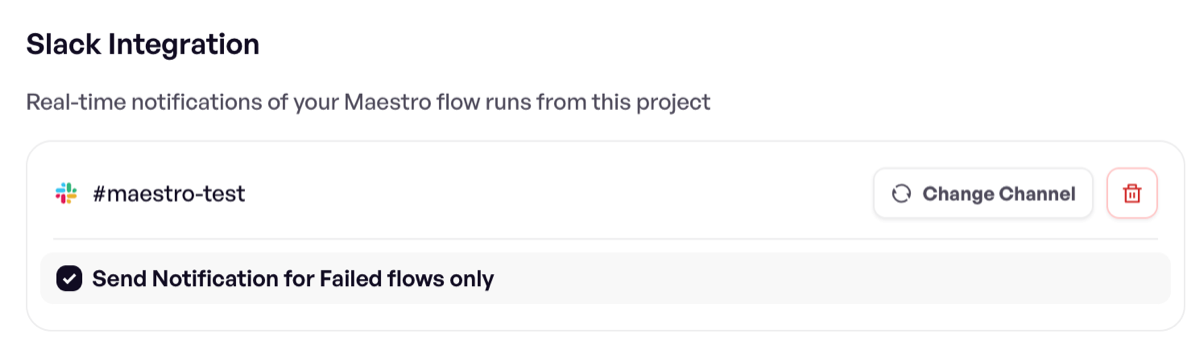
⚠️ Watch out: refresh the page after you tick the box to check that it's still ticked. Our first click didn't save and a passing run still posted to the channel.
When a run fails, the Slack message shows the upload name and branch at the top, then how many tests passed, then each failed flow with the error that made it fail:
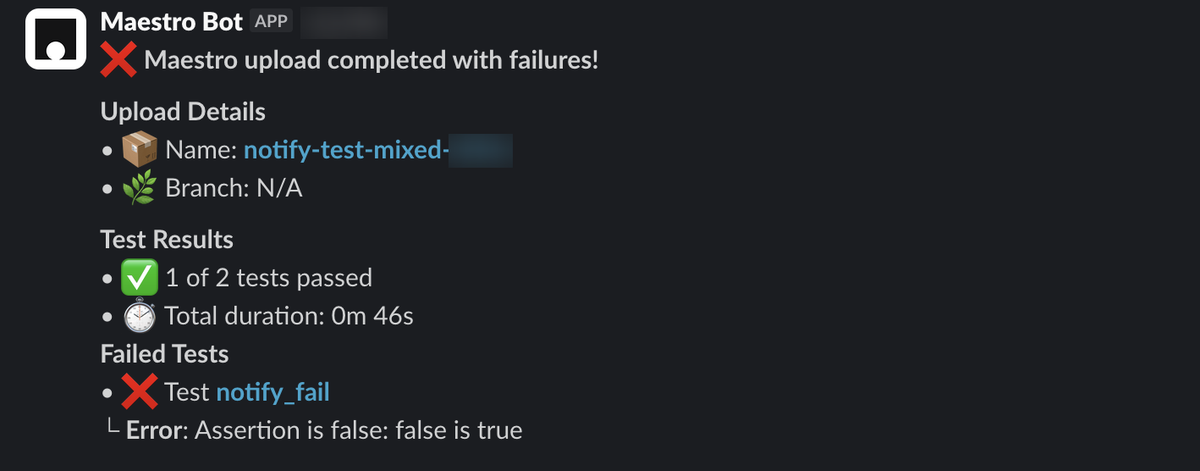
The upload name and each failed flow are links, so you can go straight from Slack to the run in the Console. The message doesn't say which device or OS the upload ran on, so if you send one upload per device, put the device in the upload name, like our nightly nightly-ios-iphone11 uploads. Branch shows N/A here because we uploaded from the terminal without --branch; from the GitHub Action, it shows the real branch.
Email is set up in config.yaml, which means it lives in your repository next to your flows. Add a notifications block to the flows/config.yaml you created in Beyond the Basics, Part 2:
# flows/config.yaml
flows:
  - tests/**

notifications:
  email:
    enabled: true
    recipients:
      - qa-team@example.com
By default, Maestro only emails when a flow fails which is usually what you want. Add onSuccess: true under email to get passing runs too.
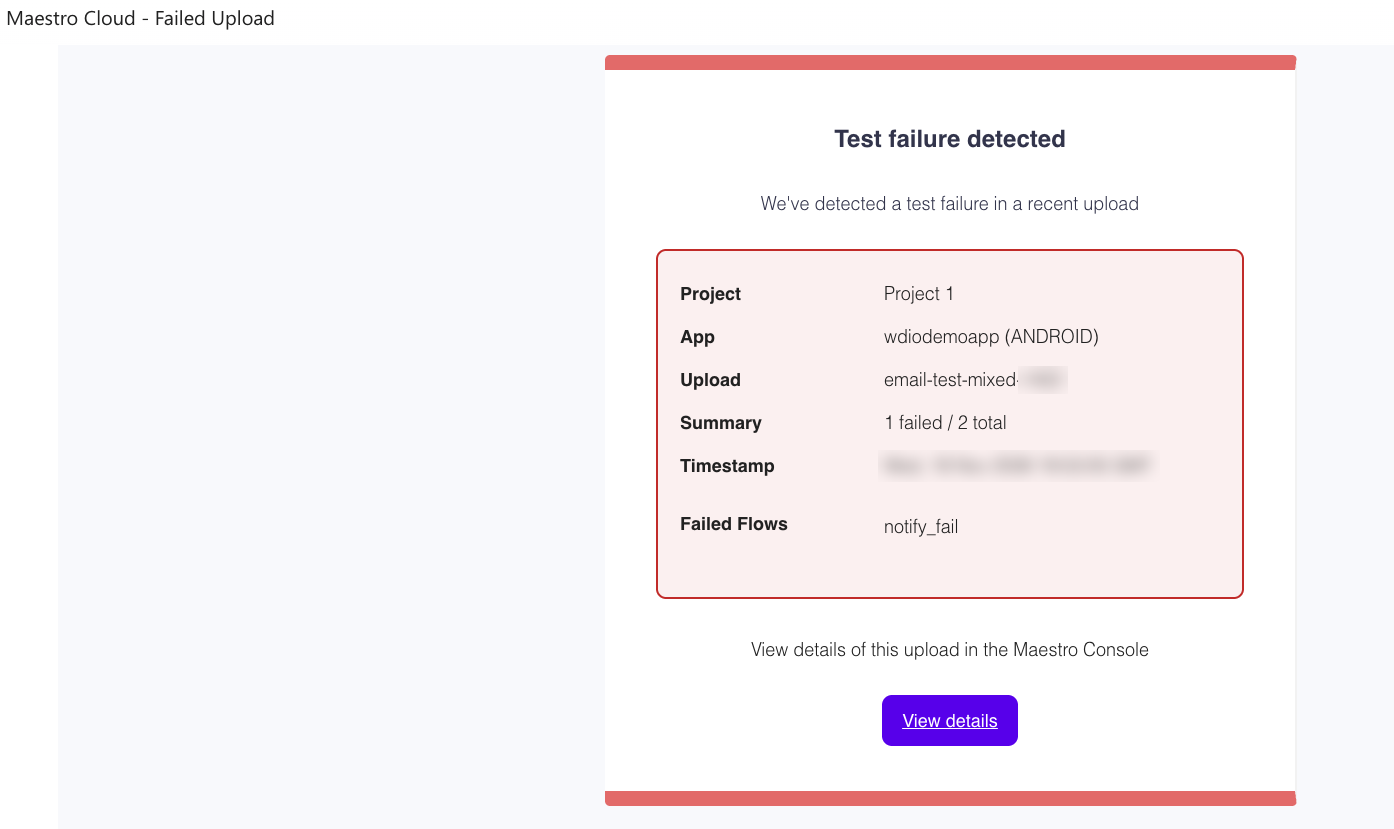
The email arrived the same minute our run finished. It lists the project, app, upload name, a pass/fail summary and the names of the failed flows with a View details button that opens the upload in the Console. Unlike the Slack message, it doesn't include the error, so you'll need that click to find out why a flow failed.
💡 Note: because email settings live in config.yaml, they're reviewed in pull requests like any other change. Slack and webhooks live in the Console, where only people with access can see or change them.Webhooks
Slack and email tell people that a run failed. A webhook lets your own tools act on it: open a ticket, post to a chat Maestro doesn't support or build your own dashboard. Cloud sends each upload's results as a POST request to a URL you choose:
- In the Console, open Settings and select the project.
- Under Webhook Management, enter the URL. It must be publicly reachable and accept POST requests.
Maestro then generates a Webhook Token. Your endpoint can check it as a Bearer token to confirm the request came from Maestro. Maestro makes the check optional, but do it anyway, because your URL is public and anyone who finds it can send it requests.
We didn't run a webhook ourselves, so the payload details below come from Maestro's Configure webhooks page. According to the docs, the JSON body describes the whole upload: its name and Console link, the branch, the platform, device model, OS version and locale, start and end times and a flows array. Each flow has its name, status, failureReason, tags and a videoUrl link to its screen recording, valid for 7 days.
What teams use it for:
- Open a bug ticket for each failure. The payload already has what a bug report needs: the flow, its
failureReason, the device, OS version and branch and a link to the run. Your endpoint can create the ticket in Jira or whatever issue tracker your team uses. Download the video and attach it because the link stops working after 7 days. - Post to a chat Maestro doesn't support. Slack is the only chat Maestro connects to directly. For Microsoft Teams, Discord or Google Chat, a small endpoint can forward the results.
- Build your own dashboard. Maestro's Dashboard combines all devices into one row per flow (see Watch the Trend on the Dashboard below). Save each payload with its device model and OS version, and a tool like Grafana can show which devices a flow fails on next to your other test results. It takes some building, so it's mostly worth it for teams that run Cloud every night.
- Route failures by tag. Each flow carries its
tagsso a failingsmokeflow can alert someone right away by phone or text, while a failingregressionflow just opens a ticket.
💡 Tip: before you write the code that reads the payload, point the webhook at a free request inspector, trigger one run and compare what arrives with the docs.
Watch the Trend on the Dashboard
Notifications tell you about one run. The Console's Dashboard shows the trend: total flow runs, failed runs, average run time and passing percentage for a time range then a Tests Summary with one row per flow and platform, its tags, average time and passing rate.
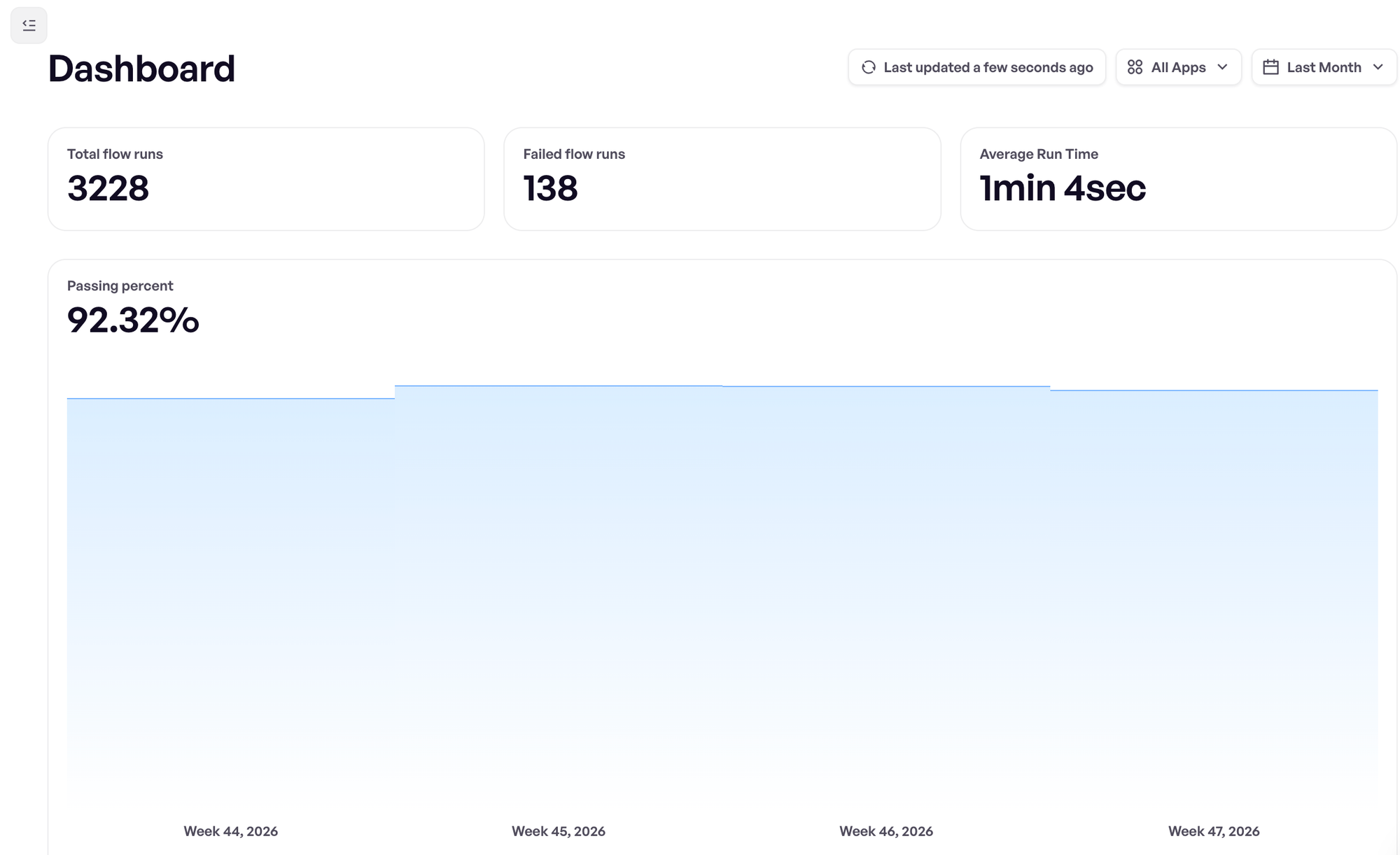
Here's the Tests Summary for the same month:
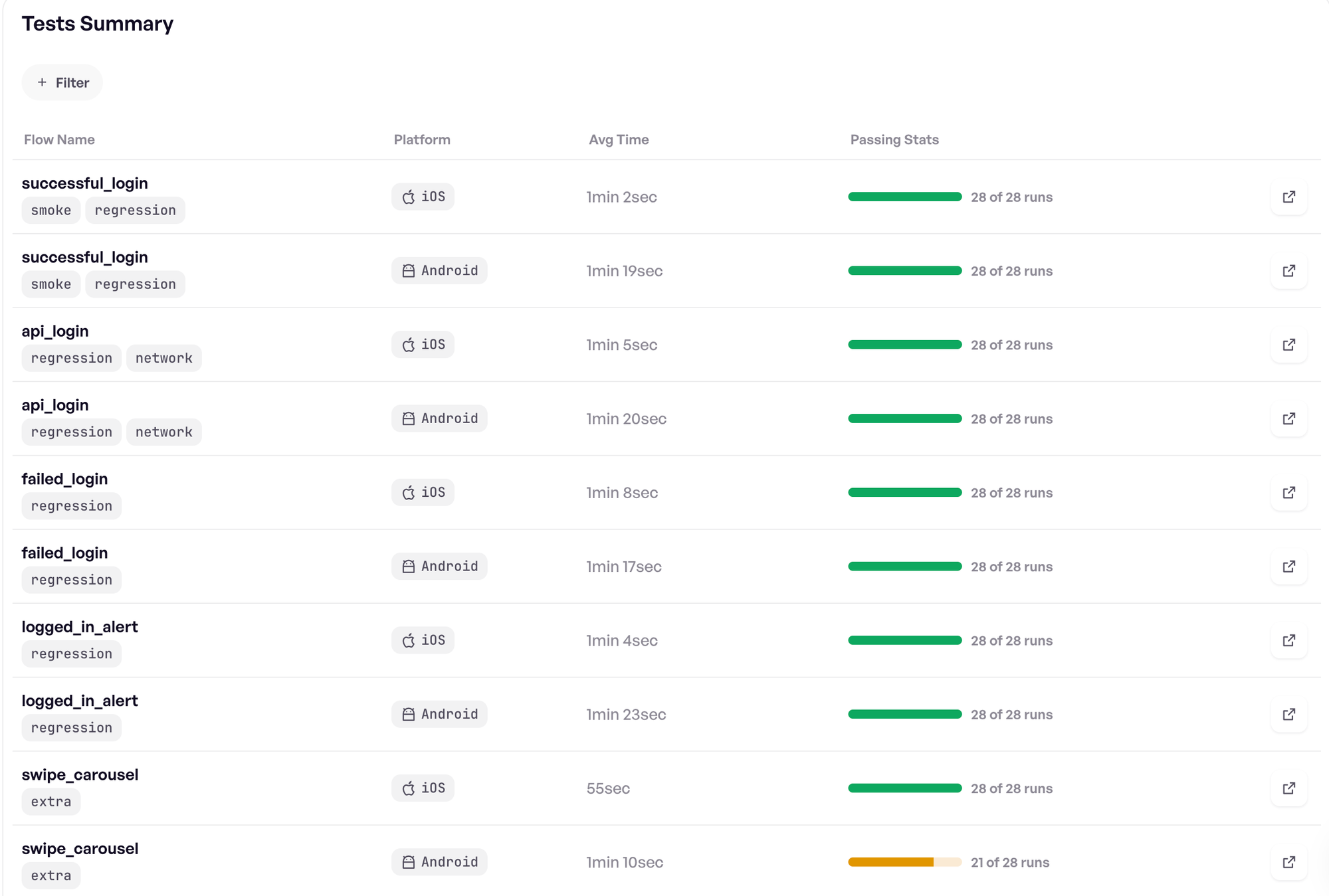
At a glance, Android swipe_carousel looks flaky: it passed 21 times out of 28. It isn't. All seven failures were on one device, the Pixel tablet and the flow passed every time on the Pixel 2, Pixel 6 and Pixel 9.
⚠️ Watch out: Passing Stats isn't the pass rate for the time range you picked. Each row counts only the flow's latest 28 runs on that platform. The time range at the top changes the summary cards, not the rows. By November 18, our Android swipe_carousel had run 203 times and failed 25 times, but its row showed only the last 28. That makes the row a good view of how a flow is doing now, but older failures drop out of it. For the full history, open the flow's run list. We didn't find this limit in Maestro's docs; we spotted it because every row showed exactly 28 runs.⚠️ Watch out: a row's numbers can mislead you in three ways:
- It mixes all your devices together. If a flow fails on one tablet but passes on every phone, the row just shows a lower pass rate. It looks like the flow fails at random when really one device is the problem. That's what happened with
swipe_carousel. - It counts your experiments too. If you upload test versions of a flow while you're fixing it, their passes and failures land in the same row as your real runs.
- It hides retries. If a flow failed and Cloud's retry passed, the row counts a pass not a failure (see Retries and Limits above).
So use the Dashboard to find which flow to look at. Then open its runs and check which devices failed before you decide it's flaky.
Dig Into a Failure
Once you know which flow to look at, click the open icon at the end of its row. The flow's page has three tools for finding out why it failed: the run history, Compare and Retry.
Let's dig into that swipe_carousel row from our nightly runs. The flow swipes a carousel left and checks that the next card, "GREAT COMMUNITY", appears. Night after night, it failed on the Pixel tablet and passed on every phone.
The Selected dropdown at the top of the flow page is the run history: it keeps every run of the flow with the newest marked (latest). Pick an older one to see its steps, video and error.
Click Compare and pick a second run to show next to the first. The list includes every run of the same flow: from any upload, on any device or platform and from earlier days, with filters for All, Success and Failed. Each side shows its result, device, video, steps with times, and its own Download artifacts.
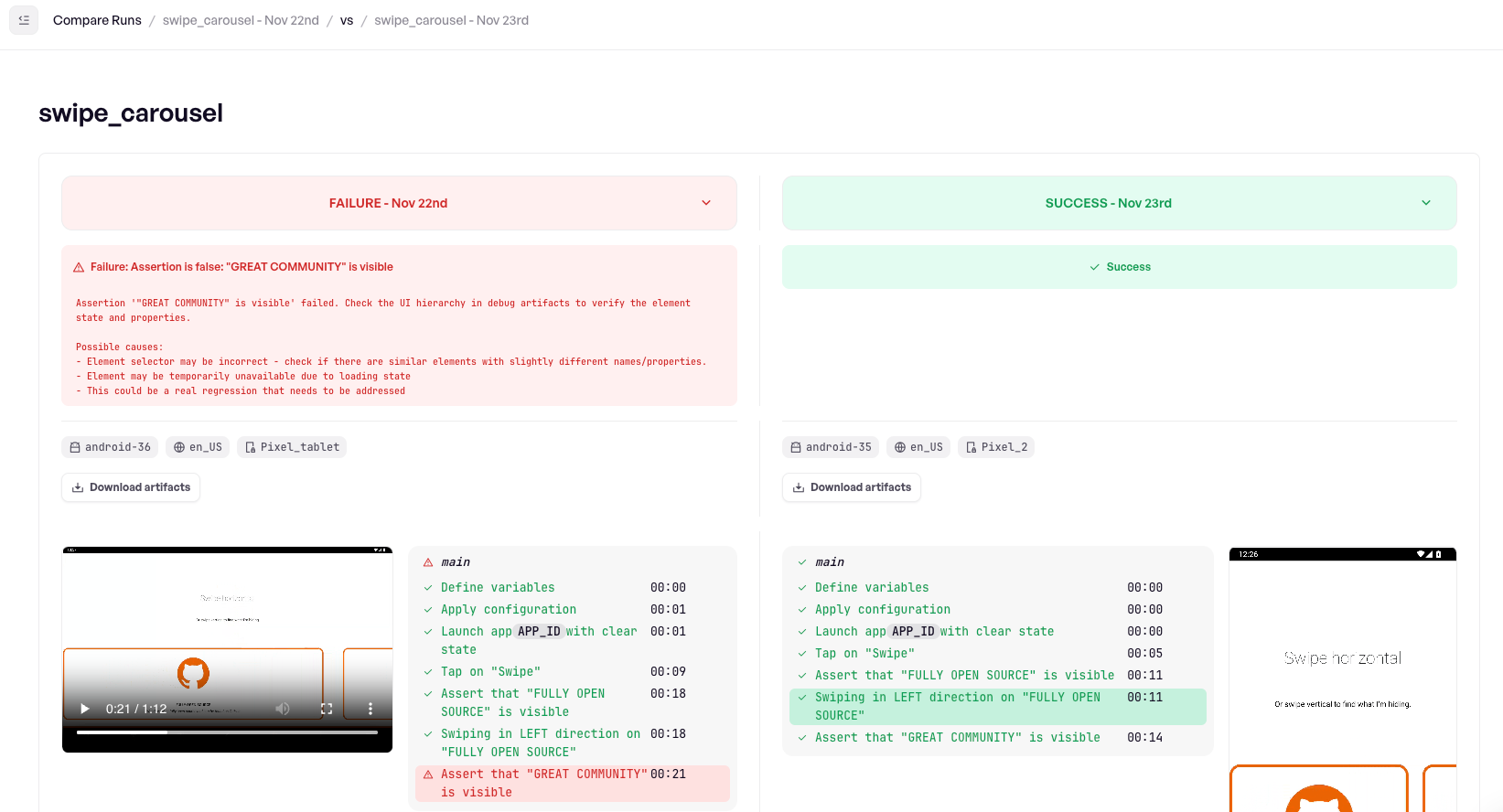
Side by side, the two runs are identical until the last step. Both tap "Swipe", find "FULLY OPEN SOURCE" and swipe left but only the tablet then fails to find "GREAT COMMUNITY". The run list showed the rest: the tablet failed every night, while the Pixel 2, Pixel 6 and Pixel 9 passed. The problem is on the tablet and the flow isn't flaky.
Retry runs the flow again on the same device, OS and locale, inside the same upload and adds the new attempt to the history dropdown. While it runs, the button turns into Stop. We retried the tablet run twice and it failed both times.
💡 Tip: a retry that keeps failing on one device is good evidence that the failure is real. A retry that passes needs more care. It's the same trap as the automatic retries above, so find out what changed before you call it fixed.
Is It Worth It?
You've now seen everything Cloud does. Here's how it compares with the self-hosted CI you built in Maestro in GitHub Actions, using the numbers measured in Part 1:
| Self-hosted CI | Maestro Cloud | |
|---|---|---|
| Cost | Free for public repos. Private repos on GitHub's Free plan get $12 of Actions usage a month: about 2,000 minutes on Linux, but only about 190 on macOS, which iOS needs | $250 a month for each device that can run a test at the same time |
| Devices | Whatever one runner can boot | Hosted pool; parallelism set by your plan |
| Android suite time, start to finish | 1 emulator: 3m 55s (4 flows), 4m 35s (9), 6m 41s (17) | 2 devices: 2m 33s (4 flows), 5m 38s (9), 9m 29s (17) |
| iOS time, one flow | About 10 minutes, mostly simulator boot and install | Under 2 minutes in most runs, device setup included |
| Maintenance | You own the emulator setup, KVM step, simulator names | None; you upload an app |
| OS versions and languages | One emulator per configuration, set up by hand | A flag per run (Part 2) |
| Time zones | Whatever you set on your device | No flag. Android starts on UTC (a flow can change it in Settings); iOS is fixed to US Pacific |
| Isolation | Fresh runner each run | Fresh device between tests |
| Results | JUnit XML + files you upload | Console with videos, logs and hierarchy data |
| Notifications | Whatever you build into the workflow | Slack, email, webhooks |
| Real devices | No | No |
What Each Plan Includes
Here's how Maestro's plans compared on the Dashboard's Upgrade Plan screen in October 2026:
| Basic | Cloud | Enterprise | |
|---|---|---|---|
| Price | Free | $250 per parallel iOS/Android device per month ($125 for web); 15% off billed yearly | Custom |
| Maestro AI commands, local test insights, Maestro GPT | ✅ | ✅ | ✅ |
| Hosted Maestro execution | Not included | Unlimited | Unlimited |
| Guaranteed parallelism, test reporting, CI and PR/MR integration | — | ✅ | ✅ |
| Users | Not included | Unlimited | Unlimited |
| Dedicated support, custom contracts, fully-managed test cases, security review | — | — | ✅ |
💡 Maestro's public pricing page calls the free plan Local and the top plan Enterprise Cloud. They're the same plans as in the table.
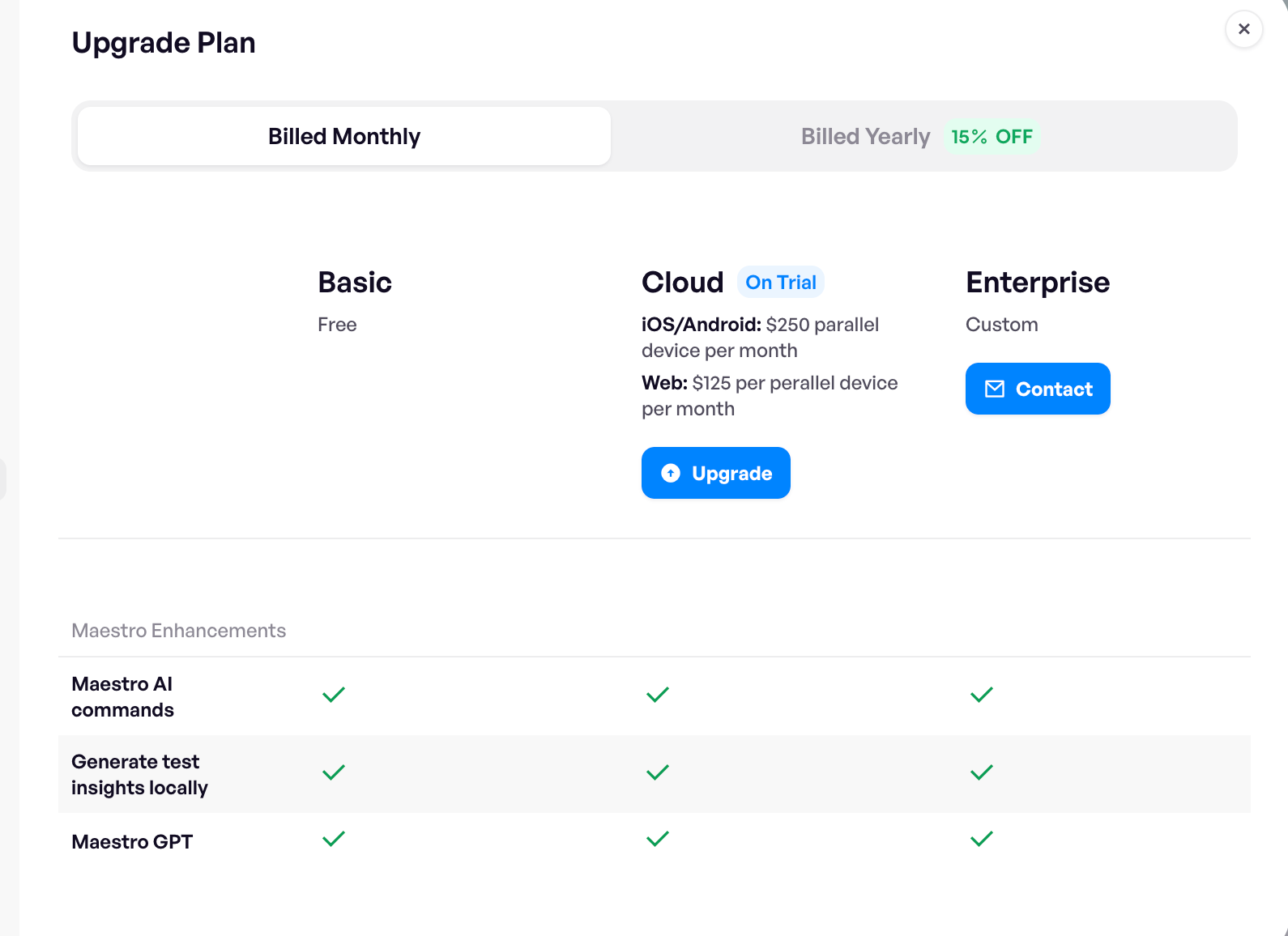
Two things stand out. First, the free plan already covers the AI features, so you can try those without paying (the AI series covers them). Second, everything a team needs, from several users to CI and pull request integration is in the paid Cloud plan.
To make the price concrete: the 2 Android + 1 iOS devices used in this series would cost $750 a month, or $637.50 a month billed yearly. Here's what that bought us:
- Faster than one Cloud device. Two Android devices ran our four-flow suite in about 2 minutes 19 seconds. One device would have needed about 4 minutes 22 seconds running the flows one after another.
- Not always faster than self-hosted. Cloud finished first with four flows but one emulator on GitHub was faster from nine flows on (see the comparison table above).
- Shared by everyone on your team. Your plan's devices are shared by every test run, not reserved for each one. If two teammates start a run at the same time, one of them has to wait. We tried it in Part 3: the first run finished in its usual 2m 32s, but the second waited for it and took 4m 47s. The more runs you start at once, the more waiting unless you pay for more devices.
- Fewer GitHub minutes, mostly on iOS. This only matters for private repos, where GitHub limits your free usage each month. Running iOS tests yourself needs a Mac machine on GitHub for about 10 minutes per run and Mac minutes use up that limit faster. With Cloud, GitHub's machine only sends your app and tests to Maestro, so a Linux machine is enough, even for iOS. With
async: true, it doesn't even wait for the results, so it uses almost no minutes (see Part 3).
⚠️ Watch out: these prices are from November 2026 and plans and features change. Check Maestro's pricing page before you budget.
When Cloud Is Worth It
| Your situation | Recommendation |
|---|---|
| Solo or small team, smoke suite, public repo | Stay on self-hosted CI. It's free and you've already built it |
| Suite grows past what one runner finishes in reasonable time | Cloud's parallel runs can help, but only with enough devices. Two weren't enough in our tests |
| iOS CI is your slowest job and you're tired of maintaining it | Cloud removes the simulator setup |
| You support several OS versions or languages | Cloud's device and locale flags make the matrix cheap to run |
| Your app depends on time zones | On Android, set the time zone in a flow (Part 2). On iOS, test locally: Cloud is fixed to US Pacific |
| Need real iPhones or Android hardware | Neither self-hosted nor Maestro Cloud. Look at a third-party device farm |
| Backend isn't reachable from the internet | Plan for the IP allowlist, or stay self-hosted |
Our verdict after a month. Overall, Maestro held up well. Flows are plain YAML, so they're quick to write and easy to read, even if you're new to automation. Our test cases were simple though, so we haven't tested it on harder cases. Maestro hides how actions like scrolling work behind the scenes. When they work, you don't need to care. When they don't, you have fewer settings to adjust than in Appium where you control each gesture yourself. We'll compare the two side by side in Article 5.
On Cloud, three features saved us the most time when a test failed:
- Comparing a failed run with a passing one.
- Re-running just the failed test.
- The video of every run, which shows exactly what happened on the screen.
We also liked that every test starts on a brand-new emulator or simulator. A test never inherits a logged-in user, saved data or an open screen from the one before, so when a test fails, the cause is in that test, not in some earlier one. That reliability isn't free, though. Preparing a fresh device adds about 40 to 50 seconds to every flow.
The biggest surprise was the devices. We expected Cloud to include real iPhones and Android phones, but every device is an emulator or a simulator. The next section covers what to do about that.
We'd recommend Maestro to small teams, including teams that aren't very technical, because the YAML is easy to learn. Even then, treat your flows like code. Put repeated steps in subflows with runFlow instead of copying and pasting them. Otherwise one small change in the app means editing a dozen files. Bigger teams can use it too, but we didn't test it at that size. If you're a big team, budget for enough Cloud devices so that runs don't wait for each other and agree early on how you'll organize subflows and tags.
👍 Best practice: stay on self-hosted CI until it starts costing you time. If your tests finish in a few minutes on one GitHub machine, Cloud buys you very little. It pays off when iOS is your slowest job, when you need to test on several devices, OS versions or languages, or when your suite is slow and you can pay for enough devices to run it in parallel. Two weren't enough to beat one emulator on our 17-flow Android suite.
When Cloud Isn't Enough: Real Devices
Every device in this series was an emulator or a simulator. Maestro's docs don't say why Cloud has no real phones but the reason is easy to see once you've used it: Cloud's main promise is a brand-new device for every flow, on any model and OS version you ask for. A virtual device can be created and thrown away in seconds. A real phone has to be wiped and reset between tests and a vendor can only offer the models it has on the shelf. On iOS, a real iPhone also needs a signed build, while a simulator build needs no signing at all.
Virtual devices catch most of what UI automation is for:
- Functional bugs: a login that fails, a button that does nothing, the wrong screen opening
- Form and validation logic: error messages, required fields, character limits
- Navigation and app state: back buttons, deep links, logged-in vs logged-out behavior
- Device-specific failures: the keyboard that wouldn't close on the iPhone 11 and SE in Part 1 and the carousel that only fails on the Pixel tablet above
- OS version differences: permission dialogs and system behavior that change between versions
- Languages and regions: translated text, dates and time zones (Part 2)
- Backend integration: API calls, test data and how the app handles server errors, as long as the devices can reach your backend
They can't tell you everything, though:
- Performance: how the app feels on a mid-range phone, with low memory or a hot battery
- Hardware: camera, Bluetooth, NFC, real fingerprint or Face ID, GPS outdoors
- Manufacturer changes: Samsung, Xiaomi and other phone makers ship their own version of Android, with different system screens, permission dialogs and battery settings. Emulators run Google's plain version, so they won't show those differences.
- Real networks: slow or patchy mobile data, carrier settings
If those matter for your app, a common approach is to split the work: run most functional tests on emulators and simulators, where they're fast and cheap (what Maestro Cloud does well) and keep a smaller set for real devices on a device farm.
Not every device farm runs Maestro flows. As of November 2026, three document it on real Android and iOS devices:
- BrowserStack App Automate: you upload the app and a zipped flows folder. For iOS, it needs a real-device build (
.ipa) not the simulator build Maestro Cloud uses and iOS 15 or later. A few Maestro commands aren't supported on its iPhones; its docs list them. - HyperExecute by TestMu AI (formerly LambdaTest): real iOS devices need a separate setup script and some options must be enabled for your organization by their support team.
- TestingBot: runs flows on real iPhones and Android devices, as well as simulators and emulators from its own command-line tool.
AWS Device Farm has a blog post on running Maestro on real Android devices, but not iOS. Sauce Labs and Firebase Test Lab don't document Maestro support. They focus on Appium, Espresso and XCUITest instead.
⚠️ Watch out: Maestro support on these platforms is newer than their Appium support and features and supported Maestro versions change. Check the vendor's current docs, and run a trial before you commit.
💡 Note: a later series on this site, Cloud Device Farms, picks up where Maestro Cloud stops: running tests on real phones and what that costs. Subscribe for free to get it when it's out.
Quick-Reference
| Need | Command / setting |
|---|---|
| Slack | Console → Settings → project → Connect Slack |
notifications.email in config.yaml (failures only by default) |
|
| Webhooks | Console → Settings → project → Webhook Management |
| See which flows fail most | Console → Dashboard → Tests Summary |
| See where a flow fails | Flow page → Compare |
| Re-run one flow | Flow page → Retry |
What's Next?
That's Maestro Cloud end to end: hosted devices and parallel runs in Part 1, OS versions and languages in Part 2, pull request checks in Part 3 and in this part, notifications, failures and a verdict on the price.
The last article in the series, Maestro vs Appium, steps back from Cloud to the bigger question: where Maestro genuinely wins, where it hits real limits and when it's time to reach for Appium and this site's Framework Series instead.


Discussion