
Across Skip Appium's Setup: A Passing Mobile Test in Minutes (Android & iOS) and the two parts of Maestro Beyond the Basics, every flow you've run has been driven from your own terminal against a device or simulator sitting on your own machine. That works for writing and debugging but it only protects you. When a teammate breaks the login screen next week, a flow nobody remembers to run won't tell you.
This article takes the flows you've built so far and runs them automatically, on both Android and iOS, every time someone opens or updates a pull request — plus a full run every night. By the end, you'll know how to:
- Put your
flowsfolder on GitHub so a pipeline can reach it - Boot an Android emulator and an iOS simulator on GitHub's machines and run your flows on them
- Run only your quick
smoketests on pull requests and everything at night - Get a test report and debug files out of a failed run
- Decide when Maestro Cloud, the paid hosted option is worth it
What Is CI?
Continuous integration (CI) means running your tests automatically whenever the code changes, instead of waiting for someone to remember. The goal is to catch a broken login screen within minutes of the change that broke it — not days later, when nobody remembers what changed.
This article uses GitHub Actions, GitHub's built-in CI service. A few terms you'll see throughout:
- Workflow — a YAML file in your repository's
.github/workflows/folder that describes what to run and when. - Trigger — the event that starts a workflow like opening a pull request or a time of day.
- Runner — a fresh virtual machine GitHub starts for each run and deletes afterwards. It has no emulator, Maestro or app until your workflow adds them.
- Job and steps — a workflow contains one or more jobs; each job is a list of steps that run in order on one runner.
If Maestro's flow files made sense to you, workflow files will too — same YAML, just describing a pipeline instead of a test.
💡 Note: GitHub Actions is free for public repositories. Private repositories on GitHub's Free plan get 2,000 minutes a month and macOS runners — which you need for iOS — cost more per minute than Linux ones, so an iOS job uses that allowance up faster. Check GitHub's billing page for current numbers.
💡 This is the same approach Maestro's own repository uses to run its tests on GitHub Actions. Everything in this article runs on your GitHub account alone: no Maestro account, no API key and no device-farm account. Running an Appium suite in CI takes more setup: you start the Appium server and install drivers before the first test runs. Hosted device pools exist for both tools. Maestro's is covered in the next article.
What Changes in CI (and What Doesn't)
Nothing about the flows themselves changes. maestro test doesn't know or care whether it's running on your laptop or a CI runner — it just needs a booted device or simulator with the app installed. The command is the one you've been running since Article 1, including the -e APP_ID=... parameter your flows depend on.
What CI adds is two problems you've been solving by hand:
- A device to run on. A GitHub runner doesn't come with an emulator or simulator already running. The workflow has to create and boot one.
- The app. In Article 1 you downloaded the demo app from its releases page yourself. In CI, the workflow has to download it every time, because the runner starts empty.
The rest of this article solves those two problems for each platform.
Put Your Flows on GitHub
A workflow can only run what's in your repository, so the ~/maestro-demo folder from Article 1 needs to become one. By the end of Maestro Beyond the Basics, Part 2, the flows folder inside it looked like this:
flows/
├── config.yaml
├── common/
│   ├── login.yaml
│   └── selectors.js
├── scripts/
│   └── get_test_user.js
└── tests/
    ├── successful_login.yaml
    ├── failed_login.yaml
    ├── logged_in_alert.yaml
    └── api_login.yaml
⚠️ Watch out: make surescripts/ends up in the repository too.api_login.yamlruns../scripts/get_test_user.jsand a missing file fails that test in CI even though it passes on your machine. You won't see it on pull requests, since they run onlysmoketests. It would show up in the first nightly run.
💡 Tip: don't have theflowsfolder from Maestro Beyond the Basics: From One Flow to a Real Test Suite? Subscribe for free and download that article's bundle. Unzip it into~/maestro-demoso you end up with~/maestro-demo/flows/and continue from here.
Create a new, empty repository on github.com/new — call it maestro-demo and don't add a README, since you're pushing an existing folder. Then, from your terminal:
cd ~/maestro-demo
git init
git add .
git commit -m "Add Maestro flows"
git branch -M main
git remote add origin https://github.com/<your-username>/maestro-demo.git
git push -u origin main
✅ If successful, refreshing the repository page on GitHub shows your flows folder. Then create the folder the workflows will live in:mkdir -p .github/workflowsThe two workflow files below go in that folder.
GitHub Actions: Android
GitHub's Linux runners can boot an Android emulator, so you don't need a hosted service to run your tests. Before maestro test can run three things have to happen, in this order:
- Turn on hardware acceleration, so the emulator runs at a usable speed.
- Create an Android Virtual Device (AVD) — the emulator's configuration: which phone model, which Android version.
- Boot the emulator and wait until it's ready.
The workflow below does all three.
Save this as .github/workflows/maestro-android.yaml:
# .github/workflows/maestro-android.yaml
name: Maestro Android

on:
  pull_request:
  schedule:
    - cron: '0 3 * * *'   # every night at 03:00 UTC

jobs:
  test-android:
    runs-on: ubuntu-latest
    timeout-minutes: 30
    env:
      # Pull requests run the smoke tests; the nightly run covers everything
      TAGS: ${{ github.event_name == 'schedule' && '--include-tags=regression' || '--include-tags=smoke' }}
    steps:
      - uses: actions/checkout@v6

      - name: Enable KVM (hardware acceleration for the emulator)
        run: |
          echo 'KERNEL=="kvm", GROUP="kvm", MODE="0666"' | sudo tee /etc/udev/rules.d/99-kvm4all.rules
          sudo udevadm control --reload-rules
          sudo udevadm trigger --name-match=kvm

      - name: Set up JDK
        uses: actions/setup-java@v5
        with:
          distribution: zulu
          java-version: '17'

      - name: Install Maestro CLI
        run: curl -fsSL "https://get.maestro.mobile.dev" | bash

      - name: Download the demo app
        run: curl -fsSL -o app.apk https://github.com/webdriverio/native-demo-app/releases/download/v2.2.0/android.wdio.native.app.v2.2.0.apk

      - name: Boot Android emulator and run tests
        uses: reactivecircus/android-emulator-runner@v2
        with:
          api-level: 34
          arch: x86_64
          script: |
            adb install app.apk
            $HOME/.maestro/bin/maestro --no-ansi --platform android test -e APP_ID=com.wdiodemoapp $TAGS --format junit --output report.xml --test-output-dir maestro-output flows/

      - name: Upload test results
        if: always()
        uses: actions/upload-artifact@v7
        with:
          name: maestro-android-results
          path: |
            report.xml
            maestro-output/
Here's what each step does:
on:— the triggers. The workflow runs on every pull request and once a night on a schedule. TheTAGSline decides which flows each one runs — covered in Selecting Which Flows Run below.- Enable KVM — switches on hardware acceleration so the emulator runs at a usable speed.
- Set up JDK — Maestro's CLI needs Java 17 or higher, the same as on your machine.
- Install Maestro CLI and Download the demo app — the two things you did by hand in Article 1.
- Boot Android emulator and run tests — creates and boots an emulator, then runs the commands under
scriptonce it's ready: install the app, run the flows. - Upload test results — saves the test report and Maestro's output files (screenshots, logs) so you can download them after the run.
if: always()makes it run even when tests fail which is exactly when you need it.
💡 The install script is the same one Article 1 offered as the no-Homebrew alternative. It puts Maestro in~/.maestro/bin, which is why the workflow calls it by its full path. The-e APP_ID=com.wdiodemoappis the same parameter you passed locally — leave it out and every flow fails, because${APP_ID}in the header resolves to nothing. And if you seeWARNING: sun.misc.Unsafe…lines at the top of the job log, they're the same harmless warnings Article 1 mentioned.
⚠️ Important: don't skip the KVM step. KVM is the Linux feature that lets the emulator use the runner's processor directly, instead of imitating one in software. Without it, the emulator can be so slow that it never finishes booting and the job times out.
reactivecircus/android-emulator-runner is the standard community action for booting an emulator in CI — it wraps the manual AVD-creation-and-boot process so you don't write it yourself.
⚠️ Watch out: two details in this step are easy to get wrong.
- Set the architecture. The action defaults to
arch: x86(an older, 32-bit image type). Newer Android versions like the API 34 we use, come asx86_64(64-bit), so the workflow setsarch: x86_64explicitly. Leave it out and the emulator may fail to start. - One command per line. Each line under
scriptruns as its own separate command. Don't split a command across several lines with\, because it breaks.
You don't have to use that action. Maestro's own repository sets up the emulator by hand: it creates the AVD with avdmanager, starts the emulator with the emulator command in headless mode (no window, no audio, no boot animation, hardware acceleration on) and waits until it's ready before running tests. That gives you more control but it's more code to maintain. Use the action first, and switch only if you need something it doesn't offer.
GitHub Actions: iOS
iOS needs a macOS runner. GitHub's macos-latest runners come with Xcode and simulators already installed which removes most of the setup Android needs.
Save this as .github/workflows/maestro-ios.yaml:
# .github/workflows/maestro-ios.yaml
name: Maestro iOS

on:
  pull_request:
  schedule:
    - cron: '0 3 * * *'   # every night at 03:00 UTC

jobs:
  test-ios:
    runs-on: macos-latest
    timeout-minutes: 60
    env:
      # Pull requests run the smoke tests; the nightly run covers everything
      TAGS: ${{ github.event_name == 'schedule' && '--include-tags=regression' || '--include-tags=smoke' }}
    steps:
      - uses: actions/checkout@v6

      - name: Set up JDK
        uses: actions/setup-java@v5
        with:
          distribution: zulu
          java-version: '17'

      - name: Install Maestro CLI
        run: curl -fsSL "https://get.maestro.mobile.dev" | bash

      - name: Download the demo app
        run: |
          curl -fsSL -o app.zip https://github.com/webdriverio/native-demo-app/releases/download/v2.2.0/ios.simulator.wdio.native.app.v2.2.0.zip
          unzip -q app.zip

      - name: Boot simulator
        run: xcrun simctl bootstatus "iPhone 17" -b

      - name: Install app and run tests
        run: |
          xcrun simctl install booted wdiodemoapp.app
          $HOME/.maestro/bin/maestro --no-ansi --platform ios test -e APP_ID=org.wdiodemoapp $TAGS --format junit --output report.xml --test-output-dir maestro-output flows/

      - name: Upload test results
        if: always()
        uses: actions/upload-artifact@v7
        with:
          name: maestro-ios-results
          path: |
            report.xml
            maestro-output/
It follows the same shape as the Android workflow, with two iOS-specific steps:
- Boot simulator —
xcrun simctl bootstatus ... -bboots the simulator and waits until it has finished starting up. Plainxcrun simctl bootreturns straight away, before the simulator is ready, so the install that follows can fail. - Install app and run tests — the same
xcrun simctl install bootedcommand from Article 1, then the samemaestro testcommand as Android, with the iOS app id.
💡 Same as in Article 1: the iOS build ships as a.zipcontaining a simulator.app(wdiodemoapp.app), so the workflow unzips it before installing. And the same limit applies — Maestro's CLI runs iOS flows on simulators only, so a simulator is what CI boots.
⚠️ Watch out:"iPhone 17"must match a simulator that actually exists on the runner. GitHub updates its macOS runners regularly and the available device names change with the installed Xcode — this workflow originally used"iPhone 16", which no longer existed on the runner by the time we ran it. If the boot step fails withInvalid device, add this step before it, read its output in the job log, and use a name from that list:
      - name: List available simulators
        run: xcrun simctl list devices available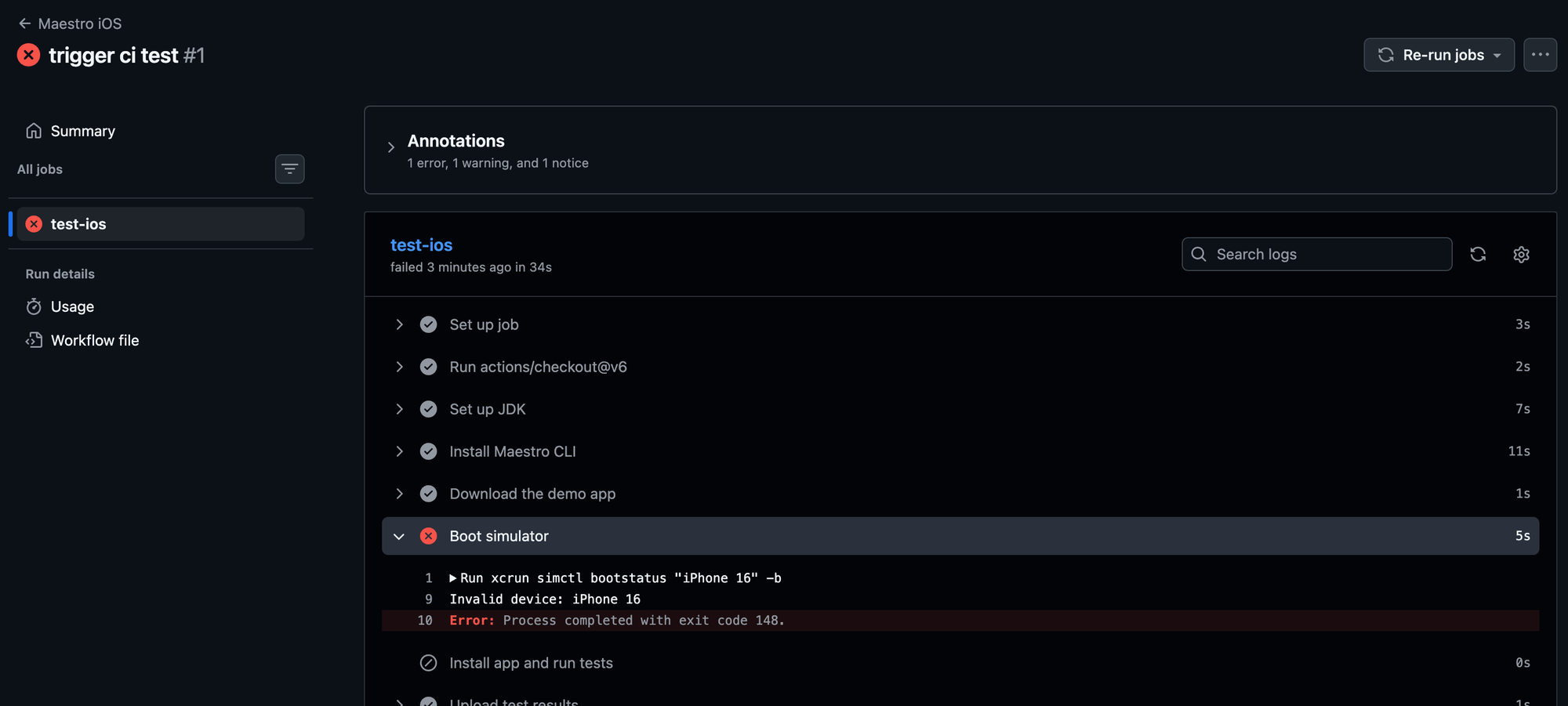
💡 How long to expect: on one of our runs, the Android job took about 2 minutes and the iOS job about 10 — roughly 2 minutes to boot the simulator and 7 to install the app and run the single smoke flow. Your times will vary with runner load, but expect iOS to be the slower of the two by a wide margin.
iOS CI is meaningfully slower than Android CI — Maestro's own end-to-end test suite gives its iOS job double the timeout of its Android job. Simulator boot time and macOS runner availability are both real factors, so don't be surprised if your iOS job is consistently the slowest thing in your pipeline.
Run It and Check the Result
Commit both workflow files and push them:
git add .github/workflows
git commit -m "Run Maestro flows in CI"
git push
Pushing to main doesn't start these workflows — they run on pull requests and on the nightly schedule. To see them run, open a pull request: create a branch, change anything small (a comment in a flow file will do), push the branch and open a pull request for it on GitHub.
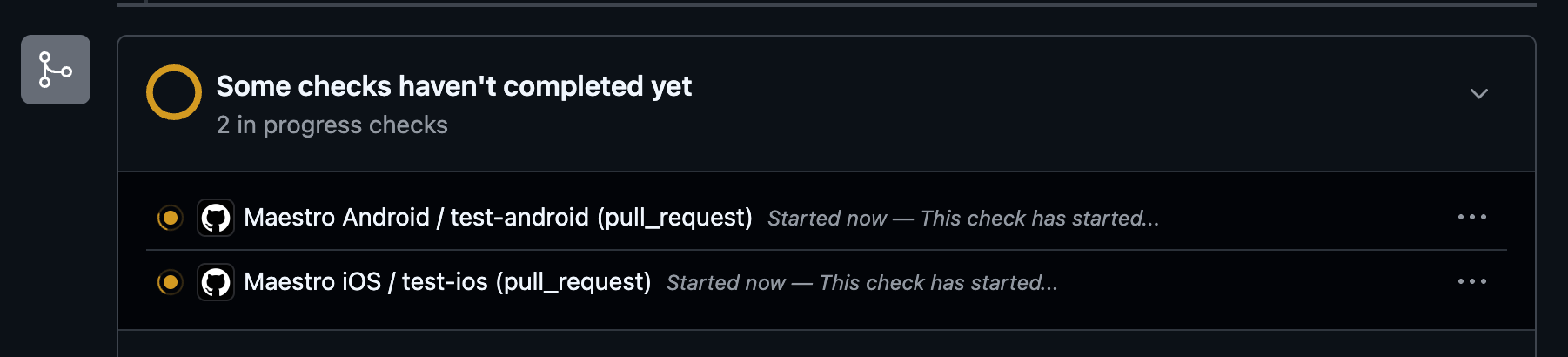
✅ If successful, the pull request shows two checks — Maestro Android / test-android (pull_request) and Maestro iOS / test-ios (pull_request) — that turn into green checkmarks when they finish. Click Details next to either one to watch the job log live, including Maestro's step-by-step output.

💡 Note: scheduled workflows only run from your repository's default branch (main). The nightly run starts the night after the workflow files land onmain— not from a pull request branch.
Selecting Which Flows Run
Maestro Beyond the Basics, Part 2 tagged your four tests like this:
| Test | Tags |
|---|---|
successful_login |
smoke, regression |
failed_login |
regression |
logged_in_alert |
regression |
api_login |
regression, network |
It also described how teams use those tags: a few quick smoke tests on every code change and the full regression suite once a night. That's what the TAGS line in both workflows does:
TAGS: ${{ github.event_name == 'schedule' && '--include-tags=regression' || '--include-tags=smoke' }}Read it as: if this run was started by the nightly schedule, use --include-tags=regression; otherwise, use --include-tags=smoke. The $TAGS in the maestro test command is replaced with whichever one applies. So a pull request runs only successful_login — a couple of minutes on Android, noticeably longer on iOS (about 10 in our run). The nightly run picks up all four.
It also keeps api_login off pull requests. That test depends on an outside API — if JSONPlaceholder is down, it fails even though your app is fine and a third-party outage shouldn't block anyone's pull request.
⚠️ Watch out: neither value in that line can be empty. The line works like "if this is the nightly run, use the first value; otherwise use the second", but GitHub treats an empty value ('') as "false" and skips to the second one. So if you swap the nightly value for''to mean "no filter", the nightly run quietly falls back to the smoke tests. To run everything at night, keep--include-tags=regression: all four of your tests carry that tag.
The tag flags behave the same on your machine as in CI, so you can try a filter locally before putting it in a workflow. For example, this runs everything tagged regression except flows tagged network (that leaves out api_login):
maestro --platform android test -e APP_ID=com.wdiodemoapp --include-tags=regression --exclude-tags=network flows/Preparing Test Data Before Maestro Runs
Maestro Beyond the Basics, Part 2 showed that Maestro's JavaScript can call an API, but can't read files from disk, load npm libraries or connect to a database. When your test data setup needs any of those, it belongs in a separate script that runs before Maestro — and in CI, that's just one more step.
The demo app has no backend, so the workflows above don't need one. On a real app, it sits between installing Maestro and running the tests:
      - name: Prepare test data
        run: ./ci/seed-test-data.sh
        env:
          DB_PASSWORD: ${{ secrets.TEST_DB_PASSWORD }}
The script runs directly on the runner which is a normal machine: it can read a CSV of test users, use any package you install or connect to a test database. Keep it outside flows/ (here, in a ci/ folder) so it's clear Maestro doesn't run it.
👍 Never put database passwords or API keys in the workflow file itself — anyone who can read the repository can read them. Store them as secrets in the repository's Settings → Secrets and variables → Actions and reference them with ${{ secrets.NAME }} as above.Reading Results in CI
When a run fails, the job log tells you which flow failed. To find out why, you need the files the workflows upload.
report.xml—--format junit --output report.xmlproduces a JUnit XML report: a standard test-results format most CI tools understand. Common GitHub Actions test-reporting actions can turn it into a pass/fail summary on the pull request, so nobody has to read raw logs to find out what broke.maestro-output/—--test-output-dir maestro-outputtells Maestro to save its screenshots, logs and command details for each flow in that folder. It's the file that answers why a flow failed.
To download them, open the workflow run on the repository's Actions tab and scroll to the Artifacts section at the bottom of the run summary. Click the artifact's name to download a .zip.

Here's the report.xml from a passing iOS run of the smoke test:
<testsuites>
  <testsuite name="Test Suite" device="iPhone 17 - iOS 26.5 - 88931AEA-62E6-447F-8697-DCE00A671384" tests="1" failures="0" time="129.566" timestamp="2026-10-09T15:04:41">
    <testcase id="successful_login" name="successful_login" classname="successful_login" file="flows/tests/successful_login.yaml" time="129.534" timestamp="2026-10-09T15:04:41" status="SUCCESS">
      <properties>
        <property name="tags" value="smoke, regression"/>
      </properties>
    </testcase>
  </testsuite>
</testsuites>
It tells you which simulator and iOS version the run used (iPhone 17 - iOS 26.5), how many tests ran and failed (tests="1" failures="0") and for each flow, its file, its tags, how long it took (in seconds) and its status.
A failing run changes three things. Here's the same flow after we changed its last assertion to text that never appears on screen:
<testsuite name="Test Suite" device="test" tests="1" failures="1" time="38.739" timestamp="2026-10-13T17:33:40">
  <testcase id="successful_login" name="successful_login" classname="successful_login" file="flows/tests/successful_login.yaml" time="38.725" timestamp="2026-10-13T17:33:40" status="ERROR">
    <properties>
      <property name="tags" value="smoke, regression"/>
    </properties>
    <failure>Assertion is false: "You are NOT logged in!" is visible</failure>
  </testcase>
</testsuite>
failures goes to 1, the flow's status becomes ERROR, and a <failure> element carries the reason. The same sentence appears in the job log: [Failed] successful_login (39s) (Assertion is false: "You are NOT logged in!" is visible), followed by 1/1 Flow Failed.
💡 Note: device="test" is how the Android emulator identifies itself in the report, unlike the iOS report, which names the simulator model and OS version.The report says what failed. The maestro-output/ folder shows why. After the failing run, the downloaded artifact held this, next to report.xml:
maestro-output/
└── 2026-10-13_174558/
    └── successful_login/
        ├── commands.json
        ├── manifest.json
        ├── logs/
        │   ├── maestro.log
        │   └── device-logcat.txt
        ├── screen-hierarchy/
        │   └── step-016-assertCondition-You_are_NOT_logged_in!.json
        └── screenshots/
            └── step-016-assertCondition-You_are_NOT_logged_in!.png
Maestro creates a timestamped folder for the run and one folder per flow inside it. The screenshot and the screen hierarchy are named after the step that failed, so you can tell which assertion it was without opening anything. Open the screenshot:
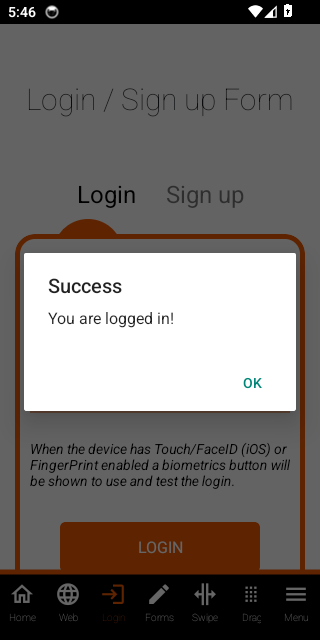
That's the answer in one image. The app did log in; the flow was looking for text that isn't there. A log line says "assertion is false". The screenshot shows you what was on screen instead.
💡 Note: a passing run writes a folder too, with the logs and commands.json but no screenshots or screen hierarchy, since there was no failure to capture. That makes the artifact a few hundred kilobytes, mostly the device log.💡 Note: the emulator prints lines likeERROR | stop: Not implementedandFailed to find ColorBuffereven when your test passes. They're emulator noise. The line that tells you what happened is the[Passed]or[Failed]one from Maestro.
When One Runner Isn't Enough
Everything above runs on machines you control, so you're limited by how many emulators or simulators one machine can run at once. A single CI runner can't host many.
You can already run flows in parallel for free: maestro test --shard-split=N splits your flows across N devices you've already started on your machine or on a CI runner that has them running. If fewer than N are connected, Maestro stops with an error.
When one machine isn't enough, Maestro offers a paid hosted service, Maestro Cloud. It runs the same flows on Maestro's own pool of devices, so your runner no longer sets the limit. Those devices are virtual (emulators and simulators) not real phones. Setup, pricing and whether it's worth it are the subject of the next article.
Quick-reference table
| Need | Flag / mechanism |
|---|---|
| Run without ANSI color codes (clean CI logs) | --no-ansi |
| Machine-readable test report | --format junit --output report.xml |
| Keep failure screenshots, logs and command details in a known folder | --test-output-dir <folder> |
| Run only tagged flows | --include-tags=<tag> |
| Skip tagged flows | --exclude-tags=<tag> |
| Target a specific platform | --platform android / --platform ios (before test) |
| Pass the app id your flows use | -e APP_ID=com.wdiodemoapp / -e APP_ID=org.wdiodemoapp |
| Run flows in parallel on connected devices | --shard-split=<N> |
What's Next?
Your flows now run without you: smoke tests on every pull request and everything every night, on Android and iOS. The limit is the machine they run on.
In the next article, Maestro Cloud, you'll run the same flows on Maestro's hosted devices, from your terminal and from GitHub Actions and work out whether the price is worth it. After that, Maestro vs Appium gives the honest verdict on when to reach for Appium and this site's Framework Series instead.
Download the code
Everything from the series so far — the flows, config.yaml, the scripts and both GitHub Actions workflows — is available as a free download.


